
Windows 11 October Update Causes BitLocker Recovery Key Issue, Primarily Affecting Business PCs
Friday, November 07, 2025Windows 11 October Update Causes BitLocker Recovery Key Issue, Primarily Affecting Business PCs
🚀 Microsoft has acknowledged a serious issue in its recent Windows 11 and Windows 10 updates where some PCs are booting into the BitLocker recovery screen, potentially locking users out of their data if they don't have the recovery key.
Microsoft has confirmed that an issue has been occurring in updates for Windows 11 and Windows 10 released on or after October 14, 2024. The problem causes some PCs to display the BitLocker recovery screen upon startup, demanding the recovery key to be entered. This issue is primarily affecting business-oriented PCs and can become a critical problem, as users without the recovery key may lose access to their saved data.
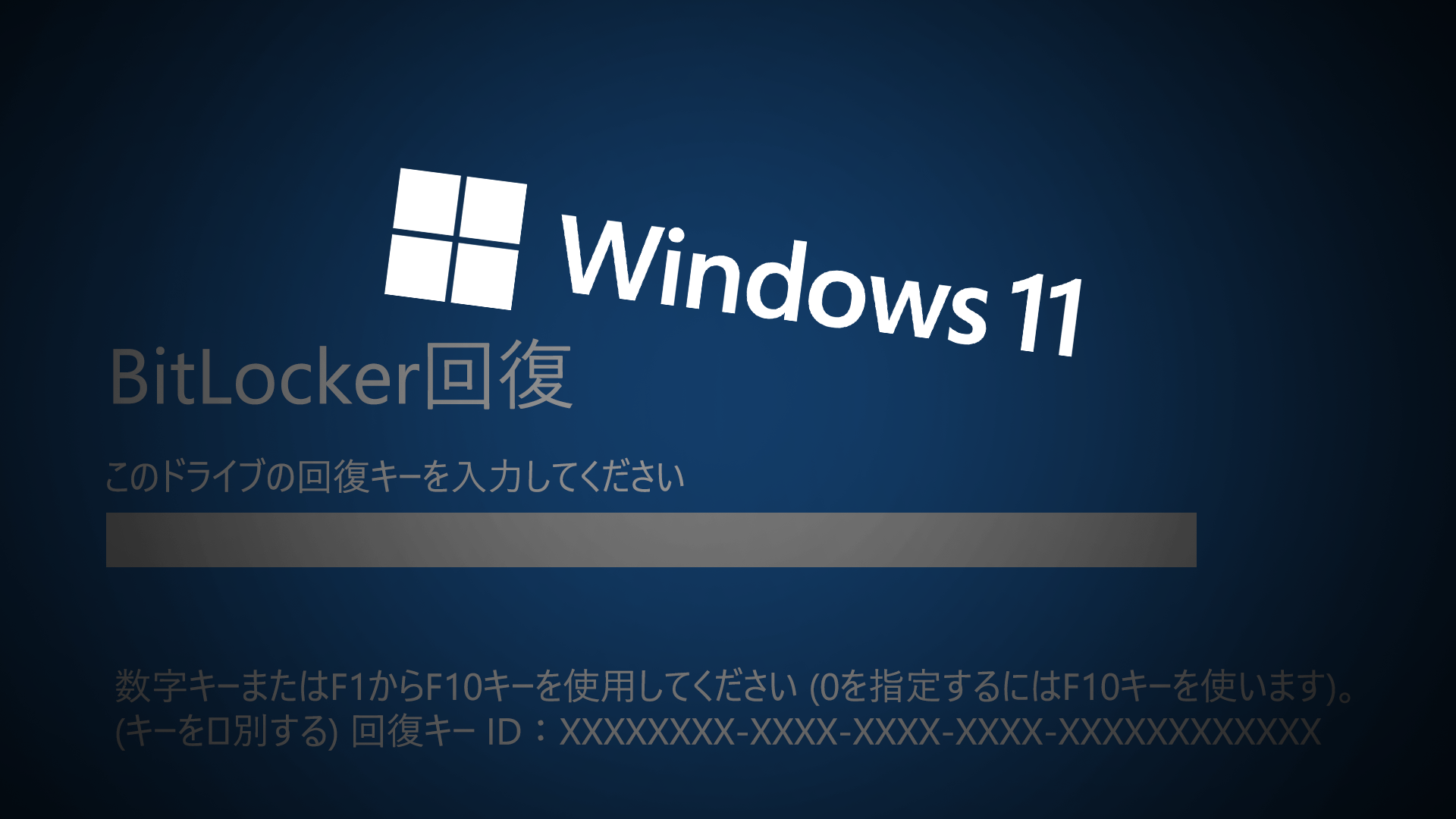
⚠️ BitLocker Recovery Prompt After October Update
The issue has been confirmed in the following versions:
- Windows 11 Version 25H2 – KB5066835
- Windows 11 Version 24H2 – KB5066835
- Windows 10 Version 22H2 – KB5066791
Microsoft acknowledged the problem in a support document published for administrators with Microsoft 365 Business or Windows 11 Enterprise licenses. Therefore, this bug is believed to primarily affect PCs used in enterprise environments. Although a patch has reportedly been released, it is not being applied automatically, meaning IT administrators need to deploy it through tools like SCCM.
Issue Widespread on Intel CPUs with Modern Standby Enabled
According to Microsoft, this issue primarily occurs on PCs equipped with Intel CPUs that support the Modern Standby (Connected Standby) feature.
Modern Standby is a power management technology introduced in the Windows 8 era that became a standard feature in Windows 10 and later. It allows a PC to continue background processing while sleeping, much like a smartphone, and is included in most modern PCs sold today.
You can check if your PC supports Modern Standby by opening Command Prompt and running powercfg /a. If "Standby (S0 Low Power Idle) network connected" is listed, your PC supports the feature.
While Microsoft has not revealed the full technical details, it is believed that the October update may have altered the boot chain or Secure Boot state. This, in turn, likely causes the process that "temporarily suspends BitLocker for a single restart" to fail on Intel-based PCs with Modern Standby, triggering the BitLocker recovery screen.
Recovery Screen Reappears Even After Entering the Key
This issue has been widely reported on platforms like Microsoft's Feedback Hub and Reddit.
One IT administrator reported that after applying KB5066835 to three PCs running Windows 11 24H2, all three were hit with the BitLocker recovery screen. For one of these machines, the screen reappeared every day, even after the recovery key was entered.
Similar problems have also occurred in Azure virtual machine environments, with one report stating, "Three Windows 11 24H2 Azure VMs failed to boot after the update and are stuck at the BitLocker recovery screen."
The problem is more pronounced on specific hardware configurations. For example, on the HP Pro Mini 400 G9 desktop (model numbers A70P7UT and 9P334AT), this BitLocker issue is accompanied by frequent TPM errors during Intune enrollment, suggesting Intel TXT (Trusted Execution Technology) could be a contributing factor.
🏠 Home Users Likely Unaffected, but Checking BitLocker Status is Recommended
Microsoft has stated that the issue affects Microsoft 365 Business or Windows 11 Enterprise editions, suggesting that Windows 11 Home and Pro versions used by general consumers should not be affected.
However, bugs causing BitLocker to appear after a Windows Update have occurred several times in the past. Therefore, it is highly recommended that you proactively check whether BitLocker is enabled on your own PC and, if it is, ensure that your recovery key is accessible in case you ever need it.
This ongoing issue serves as a critical reminder for both businesses and individuals to maintain good backup practices and keep recovery keys in a safe, accessible location. While Microsoft works to fully resolve the problem, a little preparation can prevent a major headache.