
The Best NVIDIA Optimization Guide 2026
The Best NVIDIA Optimization Guide 2026
Mastering Blackwell Architecture, DLSS 4, and the NVIDIA App
In 2026, GPU optimization has evolved past simple clock speed adjustments. With the arrival of the RTX 50-Series (Blackwell) and the maturity of DLSS 4, performance is now dictated by how well you manage your GPU's AI-compute pipeline. This guide covers the essential deep-system tweaks for the new NVIDIA unified software ecosystem.
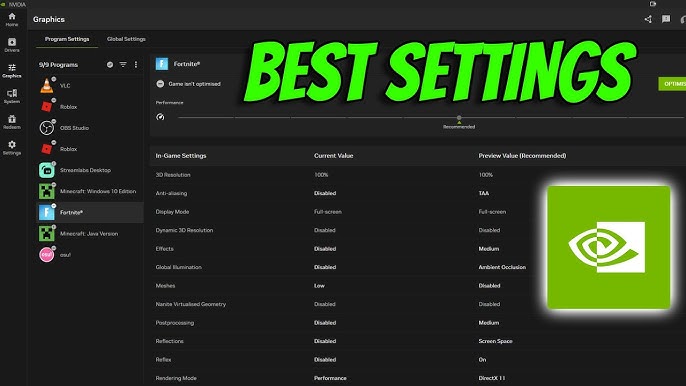
1. The Unified NVIDIA App Migration
By early 2026, the legacy "NVIDIA Control Panel" has been largely integrated into the NVIDIA App. To optimize correctly, you must utilize the new System > Graphics menu which now handles driver-level overrides more effectively than the old interface.
- Unified Driver Rollback: If a new Game Ready Driver causes stutters, use the new native rollback feature in the "Drivers" tab.
- RTX HDR: If you are on an HDR-capable monitor (especially OLED), ensure this is ON. It uses Tensor cores to map SDR games into high-quality HDR with zero latency penalty.
2. Global Graphics Settings for Blackwell & Lovelace
These settings are the "Golden Standard" for 2026, specifically tuned for **Windows 11 24H2/25H2** environments.
| Setting | Optimized Value | Impact |
|---|---|---|
| DLSS Override | Enabled (Latest AI Model) | Forces the newest Transformer-based DLSS models on older games. |
| Low Latency Mode | Ultra | Mandatory for competitive titles; reduces input lag by up to 35%. |
| Shader Cache Size | 10 GB | Prevents stuttering in heavy UE5 titles like Black Myth: Wukong. |
| Power Management | Prefer Max Performance | Keeps the GPU at its highest P-State during intensive loads. |
3. DLSS 4: Multi-Frame Generation & Neural Rendering
DLSS 4 is the headline feature of 2026. Unlike DLSS 3, which generated a single frame, Multi-Frame Generation can now generate up to 3 intermediate frames using 5th Gen Tensor Cores.
Pro Tip: Only enable Multi-Frame Gen if your base FPS is at least 60. Using it to go from 20 FPS to 80 FPS will result in high input latency. Use it to go from 70 FPS to 240 FPS for the best experience.
4. Fixing Windows 11 Gaming Stutters
Windows 11 (Version 24H2) introduced a bug where the NVIDIA Overlay could cause FPS drops in titles like CS2 and Assassin’s Creed Shadows.
- Fix: Update to Driver 581.94 or newer.
- HAGS: Ensure Hardware-Accelerated GPU Scheduling is ON in Windows Settings. This is required for DLSS 4.
- Game Mode: Keep ON. In 2026, this finally prioritizes GPU interrupts effectively over background processes.
5. The Latency Trinity: G-Sync, V-Sync, and Reflex
To achieve the "Perfect Frame Delivery" pipeline, use this exact configuration:
- NVIDIA Reflex: Set to On + Boost in-game.
- V-Sync: On in the NVIDIA App / Control Panel; Off in-game.
- Frame Limit: Cap your FPS to $Max Refresh - 3$ (e.g., 237 FPS for a 240Hz monitor) to stay within the G-Sync window.
Final Verdict
Optimizing your NVIDIA GPU in 2026 is about leveraging AI Overrides. By moving to the unified NVIDIA App and forcing the latest DLSS Transformer models, you ensure your hardware—whether it's an RTX 3060 or a 5090—is running the most efficient code possible.