
Universal Intel Chipset Updater: The Ultimate Tool for Automating Intel Driver Updates
Wednesday, December 31, 2025Universal Intel Chipset Updater: The Ultimate Tool for Automating Intel Driver Updates
Keeping your Intel chipset drivers updated is a crucial but often overlooked aspect of PC maintenance. Chipset drivers serve as the fundamental communication bridge between your operating system and Intel hardware components. Outdated or missing drivers can lead to system instability, reduced performance, and hardware compatibility issues. Traditionally, updating these drivers required manually identifying your specific hardware, navigating Intel's complex download center, and carefully selecting the correct driver package—a process that is both time-consuming and error-prone.
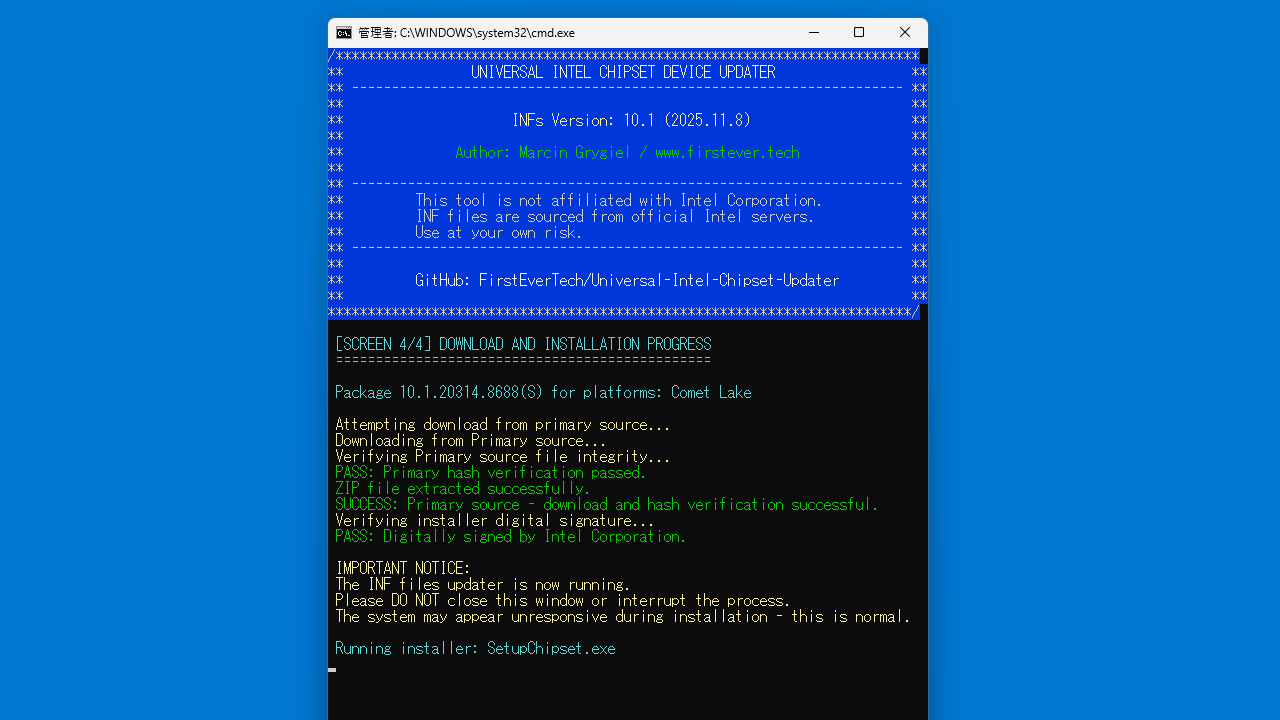
The Universal Intel Chipset Updater emerges as a powerful solution to this persistent problem. This open-source automation tool simplifies the entire process by automatically detecting your Intel hardware, identifying the latest appropriate drivers, and installing them with minimal user intervention. Available for Windows 10 and Windows 11 systems, this tool has gained significant attention in the PC enthusiast community for its effectiveness and safety.
Key Features and Capabilities
Automated Hardware Detection
The Universal Intel Chipset Updater excels in its ability to automatically identify your Intel chipset and related hardware components. This eliminates the need for users to manually decipher complex motherboard model numbers. The tool leverages advanced detection algorithms to scan your system and identify:
- Intel chipset series (e.g., 100, 200, 300, 400, 500, 600 series)
- Platform controller hub variants
- Integrated peripherals requiring INF drivers
- Management engine components where applicable
Security and Safety Mechanisms
One of the most critical aspects of any driver updater tool is its security posture. The Universal Intel Chipset Updater addresses this through several robust mechanisms:
- Official Source Verification: The tool exclusively downloads drivers from Intel's official servers or trusted repositories.
- Digital Signature Validation: Before installation, the tool verifies the digital signatures of downloaded drivers to confirm their authenticity.
- High Safety Score: Independent AI agents have conducted security audits on the tool, awarding it an impressive average safety score of 9.1/10.
- Open-Source Transparency: The project's source code is publicly available on GitHub, allowing users to audit the code for potential vulnerabilities.
Broad Compatibility
The Universal Intel Chipset Updater maintains impressive compatibility across a wide range of Intel hardware:
- OS Support: Windows 10 and Windows 11 (64-bit).
- Chipset Coverage: Supports Intel chipsets from 6th generation (Skylake) through the latest 14th generation (Raptor Lake Refresh).
- Manufacturer Agnostic: Works regardless of your motherboard manufacturer (ASUS, MSI, Gigabyte, Dell, HP, etc.).
How It Works
Primary built using PowerShell scripting (95.2% of the codebase), the tool operates through a sophisticated process flow designed to ensure accuracy and safety:
1. User Launches Tool (as Administrator)
   ↓
2. System Scan & Hardware Detection
   ↓
3. Query Intel's Official Driver Database
   ↓
4. Compare Installed vs. Latest Available Drivers
   ↓
5. Download Authentic Driver Packages
   ↓
6. Verify Digital Signatures & Integrity
   ↓
7. Create System Restore Point
   ↓
8. Install Drivers with Proper Configuration
   ↓
9. Reboot System & Verify Installation
Before installing any drivers, the tool automatically creates a Windows System Restore point, allowing users to easily revert their system to the previous state if any issues arise.
Comprehensive Usage Guide
Download and Preparation
Getting started with the Universal Intel Chipset Updater is straightforward:
- Visit the official GitHub repository: FirstEverTech/Universal-Intel-Chipset-Updater.
- Navigate to the Releases section.
- Download the latest executable file (e.g.,
ChipsetUpdater-10.1-2025.11-Driver64-Win10-Win11.exe). - Ensure you have a stable internet connection.
🔧 Detailed Execution Methods (Click to Expand)
Method 1: Executable File (Simplest)
Right-click the downloaded file and select "Run as administrator". Click "Yes" on the User Account Control prompt. The tool will launch and begin the automated process. Restart your computer when prompted.
Method 2: PowerShell Script (Advanced)
1. Open PowerShell as Administrator.
2. Navigate to the download directory.
3. Run: powershell -ExecutionPolicy Bypass -File "Universal-Intel-Chipset-Updater.ps1"
Troubleshooting Common Issues
While the tool is designed for reliability, users may occasionally encounter issues. Below is a quick reference guide:
| Issue | Most Likely Cause | Solution |
|---|---|---|
| Tool Doesn't Detect Hardware | Insufficient permissions | Run as Administrator |
| Download Failures | Firewall blocking / Unstable internet | Disable firewall temporarily / Check connection |
| Installation Errors | Antivirus interference | Temporarily disable antivirus software |
| System Instability After Update | Incompatible driver installed | Boot to Safe Mode and use System Restore |
Comparison: Universal Updater vs. Manual Updates
To understand the true value of this tool, it helps to compare it against the traditional manual process.
| Aspect | Universal Updater | Manual Update Process |
|---|---|---|
| Hardware Identification | < 1 minute (Automated) | 5-15 minutes (Manual research) |
| Driver Search & Download | < 2 minutes (Automated) | 10-30 minutes (Manual navigation) |
| Risk of Error | Very Low | Moderate to High |
| Tech Knowledge Required | Minimal | Moderate to High |
Conclusion
The Universal Intel Chipset Updater represents a significant advancement in PC maintenance utilities. By automating the complex and error-prone process of updating Intel chipset drivers, this tool saves time, reduces technical barriers, and helps ensure systems operate with optimal stability and performance. Its strong security posture and open-source nature make it a trustworthy solution for users of all technical skill levels.
Whether you are a PC enthusiast maintaining a custom build or an administrator managing a fleet of laptops, incorporating this tool into your maintenance routine (every 3-6 months) is highly recommended.