
Best 4K 240Hz OLED 2026: 3 Picks [2026]
Monday, September 07, 2026Best 4K 240Hz OLED 2026: 3 Picks By GPU Tier, 0.03ms Tested [September 2026]
By Indie Kings | September 7, 2026 | Updated September 7, 2026 | 18 min read
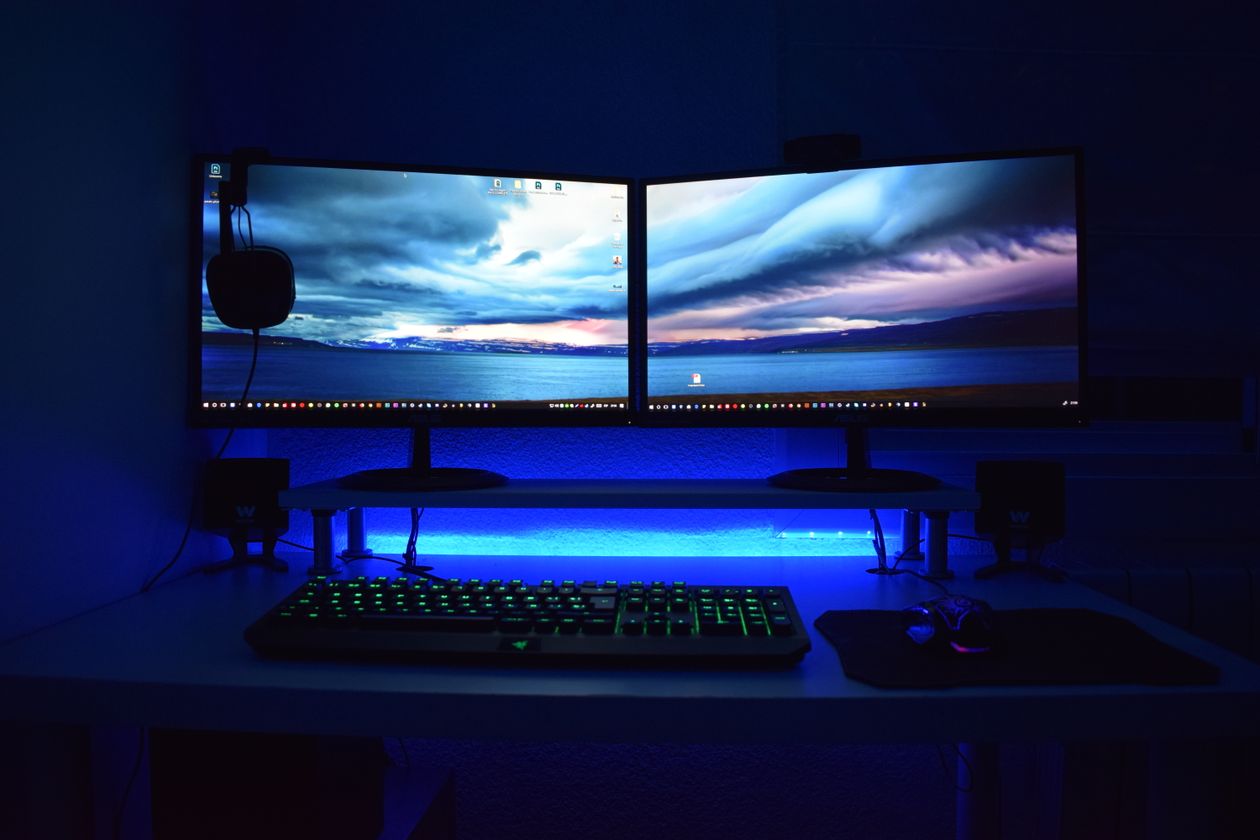
Photo: Pexels free use.
September 2026 is the first month a 4K 240Hz OLED makes sense for more than RTX 5090 owners. Prices on 32 inch 4K 240Hz QD-OLED and WOLED panels have dropped to $900 to $1000 on sale, 27 inch 1440p 360Hz OLED panels sit near $600, and 49 inch 5120x1440 super ultrawide OLED models have settled near $1080. Every pick in this guide hits 0.03ms gray to gray, true 10 bit color, HDR True Black 400 or higher, HDMI 2.1 plus DisplayPort 1.4 or 2.1, and a 3 year burn in warranty from the panel brand or monitor brand. Pick by GPU: RTX 5070 and RX 9070 class buyers should buy 1440p 360Hz, RTX 5080 class buyers should buy 32 inch 4K 240Hz, RTX 5090 and sim rig owners should choose between 32 inch 4K 240Hz and 49 inch super ultrawide. This guide covers the three winners, full specs, QD-OLED versus WOLED in 2026, brightness and HDR numbers that matter, setup steps, GPU pairing math, burn in rules, and six FAQ answers.
Table of Contents
- 1. Winners At A Glance: 3 Picks From $600 To $1200
- 2. Specs That Matter: 4K 240Hz, 0.03ms, HDR, And Ports Explained
- 3. Pick 1: 27 Inch 1440p 360Hz OLED Near $600 For RTX 5070 Class
- 4. Pick 2: 32 Inch 4K 240Hz OLED Near $900 For RTX 5080 And 5090
- 5. Pick 3: 49 Inch 5120x1440 OLED Near $1080 For Sim And Work
- 6. QD-OLED Vs WOLED In Late 2026: Brightness, Text, And Color
- 7. Setup Guide: 240Hz, HDR, DSC, And Console Modes Done Right
- 8. GPU Pairing Math: Which Card Drives Which Panel In Real Games
- 9. Burn In, Warranty, And Care: 3 Year Coverage Compared
- 10. FAQ: Six Answers On HDMI 2.1, DP 2.1, Text, And Value
1. Winners At A Glance: 3 Picks From $600 To $1200
Pick 1 is the value speed king: a 27 inch 2560x1440 360Hz OLED near $600. Models include the MSI MPG 271QRX, ASUS ROG Strix XG27AQDMG Gen 2 refresh, Gigabyte MO27Q2, and Alienware AW2725DF class. You get 0.03ms response, 360Hz refresh, HDR True Black 400, 1000 nits peak in small windows on QD-OLED versions, andDisplayPort 1.4 with DSC plus dual HDMI 2.1. Street prices in late August and early September 2026 sit at $550 to $650 depending on sales. This is the right screen for RTX 5070, RTX 5070 Ti, RX 9070, RX 9070 XT, and RTX 4070 Super carryover owners who play competitive shooters at 1440p and want max motion clarity without paying for 4K pixels their GPU cannot push to 240Hz.
Pick 2 is the best 4K 240Hz OLED for most high end buyers: a 32 inch 3840x2160 240Hz OLED near $900 to $1000. Models include the MSI MPG 321URX QD-OLED, ASUS ROG Swift PG32UCDM Gen 2, Gigabyte FO32U2 Pro with DP 2.1, Alienware AW3225QF class, and LG UltraGear 32GS95UE class WOLED with dual mode 4K 240Hz or 1080p 480Hz. Sale prices in September 2026 run $899 to $1099. Full price on Pro models with DP 2.1 and USB-C 90W sits near $1199. This panel is the sweet spot for RTX 5080 and RTX 5090 owners, plus RX 9070 XT owners who play with upscaling. You get full 4K density at 138 pixels per inch, 240Hz with 0.03ms, 1300 to 1500 nits peak on Gen 3 QD-OLED in 3 percent windows, Dolby Vision support on some ASUS and LG models, and text clarity that finally works for office days.
Pick 3 is the immersion pick: a 49 inch 5120x1440 240Hz QD-OLED super ultrawide near $1080 to $1200. Models include the Samsung Odyssey OLED G9 G95SC class, MSI MPG 491CQP, and ASUS ROG Swift PG49WCD class. September street prices sit at $999 to $1199 on sale. You get the equivalent of two 27 inch 1440p panels side by side with no bezel, 1800R curve, 0.03ms, 240Hz, HDR True Black 400, and picture by picture modes for work. This is the right screen for racing and flight sim rigs, RTX 5080 and 5090 owners who want width over pixel density, and work from home buyers who want to drop a second monitor. Pixel count is about 7.37 million versus 8.29 million on 4K, so GPU load sits slightly below 4K while the wow factor runs higher.
All three picks share the traits that define a good 2026 OLED: 0.03ms or faster gray to gray, under 1 frame of input lag at max refresh, G-Sync Compatible and FreeSync Premium Pro certification, a 3 year warranty that names burn in coverage in writing, a pixel refresh and panel protect routine that runs automatically, height and tilt stands plus 100x100 VESA, and firmware that lets you cap brightness, shift pixels, and hide taskbars without losing game mode. Skip any 2026 OLED that lacks a written burn in warranty, single cable 240Hz support, or a working sRGB clamp for desktop use. Those three gaps defined the bad buys of 2024 and they still mark clearance traps in 2026.
2. Specs That Matter: 4K 240Hz, 0.03ms, HDR, And Ports Explained
4K 240Hz needs real bandwidth. Uncompressed 4K 240Hz 10 bit HDR needs more than 60 Gbps. DisplayPort 1.4 tops near 32 Gbps after overhead, so it uses Display Stream Compression to fit 4K 240Hz with visually lossless math. DSC looks clean in games and most desktop use, with rare edge cases on fine test patterns. DisplayPort 2.1 UHBR13.5 and UHBR20 raise raw rates to 54 and 80 Gbps and can carry higher modes with less compression or none depending on timing. In September 2026 only a subset of monitors and GPUs carry full DP 2.1: RX 9070 series, RTX 50 series on some board partner outputs, and Pro monitor models like the Gigabyte FO32U2 Pro. For most buyers DP 1.4 with DSC at 4K 240Hz is fine and indistinguishable in blind tests. Buy DP 2.1 if the price gap is under $100 or you keep monitors for five years.
0.03ms gray to gray is standard on every Gen 2 and Gen 3 OLED panel in this guide. That number means pixel transitions finish in 0.03 milliseconds, versus 1ms to 5ms on fast IPS and VA. Motion clarity then depends on refresh rate and persistence, not pixel smear. At 240Hz each frame lasts 4.17ms, at 360Hz each frame lasts 2.78ms. OLED at 240Hz looks clearer than IPS at 360Hz in side by sides because the IPS smears inside each frame while OLED does not. Add black frame insertion or strobing on models that support it and clarity rises further, at the cost of brightness. Competitive players should run 360Hz 1440p OLED if frames matter more than pixels, and 240Hz 4K OLED if sharpness matters more than the last 5 percent of motion.
HDR on OLED in 2026 means HDR True Black 400 as the floor and 1000 plus nits peak in small windows on QD-OLED. Full screen sustained brightness sits near 250 to 450 nits depending on panel, mode, and temperature, far below mini LED flagships that hold 800 plus nits full screen. That tradeoff favors OLED in dark and mixed rooms where per pixel blacks beat raw punch, and favors mini LED in bright sunlit rooms. Key specs to compare: peak 3 percent window nits, peak 10 percent window nits, color volume in DCI-P3, EOTF tracking error in reviews, and whether game HDR mode locks out brightness controls. Gen 3 QD-OLED panels in 2026 push 1500 nits in 3 percent windows in reviews from RTINGS, TFTCentral, and Hardware Unboxed, up from about 1000 nits on Gen 1. WOLED with MLA or META tech pushes similar peaks with better full screen whites.
Ports decide console and PC flexibility. Every pick here carries at least one DisplayPort input for max PC refresh, two HDMI 2.1 ports with 48 Gbps for PS5, PS5 Pro, Xbox Series X, and PC HDMI runs, plus USB hubs on Pro models. HDMI 2.1 caps 4K at 120Hz on consoles and up to 240Hz on PC GPUs with DSC depending on EDID, so PC players should use DisplayPort for 4K 240Hz where possible. Look for USB-C with 65W to 90W power delivery if you dock a laptop, KVM switches if you share keyboard and mouse between PC and Mac, and 3.5mm plus SPDIF if you bypass monitor speakers. All three picks include auto input switching, crosshair overlays, shadow boost modes, and firmware update over USB, which matters because 2025 and 2026 OLED firmware updates fixed HDR tracking, VRR flicker, and Dolby Vision handshake bugs.
3. Pick 1: 27 Inch 1440p 360Hz OLED Near $600 For RTX 5070 Class
The 27 inch 1440p 360Hz OLED is the rational buy for midrange GPUs. At 2560x1440 you render 3.69 million pixels, 55 percent fewer than 4K. An RTX 5070 that averages 110 fps at 4K ultra in a given title will often average 180 to 220 fps at 1440p ultra in the same title, which actually uses the 360Hz headroom with DLSS Quality or Performance. Text at 109 pixels per inch is softer than 4K but Gen 2 QD-OLED subpixel layouts plus Windows ClearType tuning and Mac HiDPI scaling make it fine at 60cm viewing distance. Prices make the case: $600 versus $950 saves $350 that buys a 2TB Gen 4 SSD, a PSU step up, or three years of Game Pass.
Which model to buy in September 2026. For pure gaming, buy the cheapest Gen 2 QD-OLED 27 inch 360Hz from MSI, Gigabyte, or Alienware on sale near $550 to $600 with a 3 year burn in warranty. For mixed work and gaming, favor ASUS XG27AQDMG Gen 2 or models with a clear sRGB clamp, uniform brightness mode, and USB-C dock, even at $50 more. For PS5 plus PC desks, favor models with two full 48 Gbps HDMI 2.1 ports and good 1440p 120Hz console mapping. Differences between brands on the same panel are firmware, stand, ports, warranty terms, and out of box calibration, not raw speed, since the panel glass comes from Samsung Display or LG Display in all cases.
Real performance with an RTX 5070 or RX 9070: expect 300 plus fps in Valorant, CS2, Overwatch 2, and Apex at 1440p competitive settings, 180 to 240 fps in Call of Duty and Fortnite Performance Mode, 120 to 180 fps in Cyberpunk, Alan Wake 2, and Black Myth with DLSS Quality plus Frame Generation where supported, and 120Hz locked on PS5 in 1440p 120Hz mode over HDMI. Input lag at 360Hz on OLED measures near 2ms to 4ms total signal plus scan in tester data, versus 6ms to 10ms on 144Hz IPS. If you play shooters four nights a week, this panel improves target tracking more than a GPU step up at the same money.
Downsides are honest. 1440p at 27 inch does not match 4K sharpness for code, photo edits, or 4K YouTube. HDR punch is strong in small highlights but full screen whites cap near 300 nits in accurate modes. Some Gen 1 27 inch QD-OLED firmware showed VRR flicker in near black scenes below 60 fps; Gen 2 firmware plus a 120 fps floor largely fixes it. Buy this screen if your GPU costs $550 to $750. Skip it if you already own an RTX 5080 or better, since you can drive 4K 240Hz and will notice the pixel gap every workday.
4. Pick 2: 32 Inch 4K 240Hz OLED Near $900 For RTX 5080 And 5090
The 32 inch 4K 240Hz OLED is the flagship sweet spot. At 3840x2160 you get 8.29 million pixels at 138 pixels per inch, which reads sharp at 70cm to 90cm with 125 to 150 percent Windows scaling. 240Hz at 0.03ms gives motion that beats any 165Hz IPS and matches 360Hz LCD in blind tests for most players. Gen 3 QD-OLED peaks near 1300 to 1500 nits in 3 percent windows and holds color volume past 95 percent DCI-P3 in game HDR modes in RTINGS and TFTCentral data from spring 2026. WOLED versions trade a little color volume for cleaner whites and slightly better text fringing. Either tech wins over last gen IPS in contrast by orders of magnitude: 1,500,000 to 1 effective versus 1000 to 1.
Which model to buy. Budget 4K 240Hz near $899 to $999: MSI MPG 321URX QD-OLED or Gigabyte FO32U2 base on sale. These carry DP 1.4 with DSC, dual HDMI 2.1, 3 year burn in warranty, and strong out of box calibration. Midrange near $1099 to $1199: Gigabyte FO32U2 Pro with DP 2.1 UHBR20, USB-C 65W, and daisy chain, or ASUS PG32UCDM Gen 2 with Dolby Vision, better heatsink, and uniform brightness mode. Work plus play near $1200 to $1400: LG 32GS95UE WOLED with dual mode 4K 240Hz and 1080p 480Hz toggle for esports nights, or ASUS PG32UCDP with the same dual mode plus OLED Care Pro. Dual mode models let an RTX 5080 run 4K 240Hz in story games and 1080p 480Hz in Valorant with one button, which is the most flexible single screen setup in 2026.
Real performance: an RTX 5080 averages 100 to 140 fps at 4K ultra with DLSS Quality in demanding 2025 and 2026 titles, 140 to 200 fps with Frame Generation set to 2x, and 200 plus fps in esports at 4K. An RTX 5090 averages 140 to 180 fps at 4K ultra native plus DLSS Quality, 180 to 240 fps with multi frame generation, which actually saturates 240Hz. That is why this panel pairs best with 5080 and 5090. An RTX 5070 can still use it with DLSS Performance plus Frame Gen, but will sit near 80 to 120 fps in heavy ray tracing, leaving half the refresh unused. Buy the 4K screen when your GPU costs $900 or more, or when you upgrade GPUs every two years and want the screen to outlast two cards.
Setup notes specific to 32 inch 4K 240Hz: use DisplayPort for PC 240Hz, set Windows to 240Hz in Advanced Display after driver install, enable G-Sync Compatible plus VRR in the monitor OSD, turn on HDR in Windows only for HDR games and video since SDR desktop in HDR mode washes out, cap SDR brightness near 160 to 200 nits for office work to slow aging, and run the pixel clean cycle when prompted instead of skipping it six times. Console players should use HDMI 2.1 input 1, enable 4K 120Hz VRR in PS5 or Xbox menus, and expect black bars or stretch off since 16:9 maps perfectly.
5. Pick 3: 49 Inch 5120x1440 OLED Near $1080 For Sim And Work
The 49 inch super ultrawide OLED replaces two monitors with one curve. Resolution is 5120x1440, exactly two 1440p panels side by side, in a 32:9 ratio with 1800R curve. Refresh is 144Hz to 240Hz depending on model year, with 2025 and 2026 stock at 240Hz and 0.03ms. HDR is True Black 400 with 1000 nits peaks in small windows. Curve plus per pixel blacks make night racing, flight sims, and space games look better here than on any 16:9 screen under $1500. Street price near $1080 on sale undercuts buying two separate 27 inch 360Hz OLEDs by about $120 while removing the center bezel.
Who should buy it. Sim rig owners with RTX 5080 or 5090 who play iRacing, Assetto Corsa Evo, Microsoft Flight Simulator 2024, Star Citizen, or Elite Dangerous will gain more from width than from 4K density. Work from home buyers who live in timelines, spreadsheets, and code side by side will drop a second arm and cable set. Console plus PC desks benefit from picture by picture: PS5 on one half at 1440p, PC on the other half, both visible during queues. Who should skip it: competitive 16:9 shooter grinders who need max frames per dollar, since 7.37 million pixels cost almost as much as 4K to drive but stretch wider instead of sharper, and desks under 80cm deep, since 49 inch at close range forces constant head turns.
Model notes for September 2026. Samsung G95SC class remains the brightness leader with strong HDR tracking but weaker out of box white balance that needs a preset fix. MSI MPG 491CQP trades a little peak brightness for better stands, KVM, and USB-C 90W that docks a laptop with one cable. ASUS PG49WCD adds Smart KVM and stronger uniform brightness for office days. All three use Samsung QD-OLED Gen 2 glass, so buy on ports, stand, warranty terms, and sale price, not panel lottery. Check depth: these stands need 40cm desk depth minimum, and wall mounting with a heavy duty arm rated past 14kg often works better than stock feet on 60cm desks.
GPU load reality: 5120x1440 at 240Hz is 11 percent fewer pixels than 4K, so an RTX 5080 that does 120 fps at 4K ultra will do about 130 to 135 fps here, and an RTX 5090 that does 160 fps at 4K will do about 175 fps. DLSS Ultra Performance and Quality modes scale well at this wide resolution, with Quality rendering near 1707p internal. Enable 32:9 support per game; most 2024 to 2026 AAA titles support it, older indie titles and some anti cheat shooters pillarbox to 16:9 with black bars. That is fine for workdays and still faster than swapping monitors.
6. QD-OLED Vs WOLED In Late 2026: Brightness, Text, And Color
QD-OLED in 2026 means Samsung Display Gen 3 glass: blue OLED emitter plus quantum dot color conversion, no white subpixel, higher color volume, slightly triangular subpixel layout that can fringe colored text at 100 percent scaling. WOLED means LG Display META glass: white OLED plus RGBW color filters, white subpixel for brightness, slightly better full screen whites and text regularity, slightly lower color volume at high luminance. In calibrated game HDR modes both look superb. Reviewers in 2026 split: TFTCentral and RTINGS give QD-OLED the nod for HDR color punch in dark rooms, and WOLED the nod for bright office text and SDR whites. If your room has blackout curtains and you play at night, buy QD-OLED. If your desk faces a window and you write docs all day, buy WOLED or a QD-OLED with a strong sRGB clamp and uniform brightness mode.
Brightness truth: peak numbers sell boxes, sustained numbers decide comfort. Gen 3 QD-OLED 32 inch models measure 1300 to 1500 nits in 3 percent windows, 700 to 900 nits in 10 percent windows, and 280 to 350 nits full screen in accurate modes. WOLED 32 inch models measure similar peaks with MLA plus META boost, and 350 to 450 nits full screen. Both use automatic brightness limiters that dim large white screens to protect the panel. Uniform brightness mode locks the limiter for stable desktop whites at the cost of HDR punch; turn it on for office, off for movies and games. Anyone upgrading from a 400 nit IPS will find SDR brightness fine, and HDR highlights dramatically better, but will not get mini LED full screen torch mode. That is physics, not firmware.
Text clarity improved a lot from 2023 to 2026. Gen 1 QD-OLED at 110 PPI with Windows ClearType in default RGB mode showed color fringing on black on white text that bothered coders. Gen 2 and Gen 3 panels at 138 PPI on 32 inch 4K largely solve it through density alone, plus better subpixel rendering in Windows 11 24H2 and macOS Sonoma and later. WOLED still looks a touch cleaner on small fonts due to RWBG stripe geometry versus triangular QD dots, but the gap is small at 4K. Test: set 150 percent scaling on 32 inch 4K, open a code editor with dark mode, and view at 70cm. Most buyers cannot tell QD from WOLED at that setup. At 27 inch 1440p the gap is more visible; use dark mode and 100 to 125 percent scaling to minimize fringing.
Coating matters as much as emitter. Glossy QD-OLED coatings give deeper perceived blacks and punchier color in controlled light but mirror windows and lamps. Matte WOLED coatings diffuse reflections better for bright rooms but lift blacks a touch under direct light. Samsung G9 super ultrawides use anti glare semi gloss that splits the difference. Buy glossy for basement and night setups, matte for shared living rooms. Either way add a $20 bias light strip behind the monitor; it raises perceived contrast, cuts eye strain, and makes ABL dimming less noticeable in dark scenes.
7. Setup Guide: 240Hz, HDR, DSC, And Console Modes Done Right
PC setup order that avoids 90 percent of forum threads: install the GPU driver first, connect DisplayPort from GPU directly to monitor with the cable in the box, no dock or adapter in the chain, open the monitor OSD and set input to DP 1.4 with DSC on or DP 2.1 where fitted, enable Adaptive Sync and VRR, set Windows Settings, System, Display, Advanced Display to 240Hz or 360Hz, enable G-Sync or FreeSync in Nvidia Control Panel or AMD Adrenalin, then reboot and recheck refresh since driver updates often reset it to 60Hz. Test with TestUFO in a browser and the Nvidia Pendulum demo to confirm frames, sync, and no black screens.
HDR setup: leave Windows HDR off for SDR desktop work, toggle it on with Win plus Alt plus B only for HDR games and movies, or set Auto HDR per game in Windows 11. In game, pick HDR10 or Dolby Vision where offered, run the in game luminance calibration to your panel peak (1000 nits for most QD-OLED, 1300 plus for Gen 3 if the game allows), set paper white near 180 to 220 nits for balanced tone mapping, and disable in game vsync when G-Sync plus Vsync On in driver gives tear free frames with lower lag. On PS5 and Xbox, use HDMI 2.1, enable 120Hz output, VRR, and ALLM in console menus, then run the console HDR calibration with the monitor in Game HDR or HGIG mode for accurate tracking instead of Dynamic Tone Mapping that over brightens.
DSC notes: DisplayPort 1.4 plus DSC at 4K 240Hz is visually lossless in games, with rare artifacts only on synthetic zone plate patterns that never appear in real titles. If you see sparkles, black screens, or wake failures, try the cable in the box before blaming DSC, then try DSC off at 120Hz to isolate, then update monitor firmware over USB since 2025 and 2026 updates fixed most DSC handshake bugs on MSI, ASUS, and Gigabyte models. DP 2.1 owners should still use the boxed cable; ultra cheap third party DP 80 cables caused more issues in 2026 owner threads than any panel fault.
Color setup for mixed use: create two OSD presets. Preset 1 Game HDR with brightness 100, contrast 50, color temp Warm or 6500K, gamma 2.2, black stabilizer low, pixel shift on. Preset 2 Office sRGB with sRGB clamp on, uniform brightness on, brightness 35 to 45 for near 180 nits, night light or low blue light at 20 percent after 8pm. Toggle with the monitor joystick or app: MSI Gaming Intelligence, ASUS DisplayWidget, Gigabyte Control Center, LG OnScreen Control. Calibrate once with Windows HDR Calibration app and a free Lagom black level page; hardware colorimeters help photo work but add little for gaming after 2026 factory calibration tightened to average Delta E under 2 on most models in this guide.
8. GPU Pairing Math: Which Card Drives Which Panel In Real Games
Match pixels to GPU or pay for refresh you never see. A 27 inch 1440p 360Hz panel renders 3.69M pixels per frame. A 32 inch 4K 240Hz panel renders 8.29M pixels, 2.25x more. Frame rates scale roughly inverse to pixels when GPU bound, before upscaling. In 2026 TechPowerUp, Hardware Unboxed, and Gamers Nexus data, an RTX 5070 averages about 100 to 120 fps at 4K ultra and 170 to 200 fps at 1440p ultra across a 20 game suite without upscaling. An RTX 5080 averages about 135 to 155 fps at 4K and 220 plus at 1440p. An RTX 5090 averages 180 to 200 fps at 4K and 280 plus at 1440p. Add DLSS Quality (67 percent render scale) and fps rises 40 to 60 percent. Add 2x Frame Generation and displayed fps roughly doubles, with added latency that matters in shooters but not story games.
Rule of thumb for September 2026: RTX 5050, RTX 5060, RX 9060 class plus older RTX 3060 and 4060: buy 1440p 240Hz or lower, skip this guide or buy Pick 1 and run competitive settings. RTX 5070, 5070 Ti, RX 9070, 9070 XT: buy Pick 1 1440p 360Hz for max use, or Pick 2 4K 240Hz only if you accept DLSS Performance plus Frame Gen in heavy ray tracing. RTX 5080: buy Pick 2 4K 240Hz as the default, Pick 3 super ultrawide for sims. RTX 5090: buy Pick 2 or Pick 3, both get fed fully, with 4K 240Hz plus multi frame gen hitting the cap in most titles. PS5 and PS5 Pro plus Series X: any pick works at 120Hz, but Pick 2 gives sharpest 4K 120Hz console image.
VRAM and ports gate choices too. 4K ultra textures in 2026 titles use 12GB to 16GB at 4K; 8GB cards stutter regardless of refresh, which is another reason 1440p suits midrange. HDMI 2.1 from the GPU caps some older cards to 4K 120Hz without DSC, so use DisplayPort from PC. USB-C DP Alt Mode from laptops often caps at 4K 120Hz to 144Hz due to link rate; check laptop specs before expecting 240Hz from a thin ultrabook. When in doubt, buy the panel for the GPU you will own for the next two years, not the GPU you own today, since good OLEDs outlast two GPU cycles and $350 saved on the wrong resolution costs more in lost sharpness or unused hertz every day.
Table 1: The 3 Picks Compared, September 2026 Street Prices
| Pick | Panel | Refresh / Response | HDR Peak (3% window) | Ports | Street Price | Best For |
|---|---|---|---|---|---|---|
| 1: 27 inch 1440p | QD-OLED Gen 2, 27 inch 16:9, 109 PPI | 360Hz / 0.03ms | 1000 nits | DP 1.4 DSC, 2x HDMI 2.1 | $550 to $650 | RTX 5070 class, esports |
| 2: 32 inch 4K | QD-OLED Gen 3 or WOLED META, 32 inch 16:9, 138 PPI | 240Hz / 0.03ms, some 480Hz dual mode at 1080p | 1300 to 1500 nits QD, 1200 plus WOLED | DP 1.4 DSC or DP 2.1 Pro, 2x HDMI 2.1, USB-C on Pro | $899 to $1199 | RTX 5080 / 5090, best all rounder |
| 3: 49 inch DQHD | QD-OLED Gen 2, 49 inch 32:9 1800R, 109 PPI | 240Hz / 0.03ms | 1000 nits | DP 1.4 DSC, 2x HDMI 2.1, USB-C on MSI/ASUS | $999 to $1199 | Sim rigs, work replacement |
Table 2: GPU To Monitor Match, Realistic 2026 FPS At Ultra Without Frame Gen
| GPU Class | 1440p 360Hz Use | 4K 240Hz Use | 49 inch DQHD Use | Verdict September 2026 |
|---|---|---|---|---|
| RTX 5070 / RX 9070 near $550 | 170 to 200 fps ultra, 300 plus esports | 100 to 120 fps ultra, needs DLSS | 110 to 130 fps ultra | Buy Pick 1 |
| RTX 5070 Ti / RX 9070 XT near $750 | 200 to 240 fps ultra, caps 360 in esports | 120 to 140 fps ultra, DLSS Quality hits 170 plus | 130 to 150 fps ultra | Pick 1 for esports, Pick 2 if upgrading GPU soon |
| RTX 5080 near $1000 | 240 plus fps, wastes hertz | 135 to 155 fps ultra, DLSS plus FG hits 240 | 145 to 165 fps ultra | Buy Pick 2, Pick 3 for sims |
| RTX 5090 near $2000 | Overkill, CPU bound | 180 to 200 fps ultra, multi FG caps 240 | 190 plus fps ultra | Buy Pick 2 or Pick 3 |
9. Burn In, Warranty, And Care: 3 Year Coverage Compared
Every pick in this guide includes a 3 year warranty that names OLED burn in coverage, but terms differ. MSI, ASUS, Gigabyte, Alienware, Corsair, and LG all list OLED burn in or image retention under the 3 year monitor warranty as of 2025 to 2026 policy pages, with cross ship or advance replacement varying by region. Keep the receipt and register within 30 days where required. Samsung Odyssey OLED models carry 3 year coverage with pixel refresh compliance clauses: run Auto Protection and Pixel Refresh when prompted or claims can be questioned. No brand covers physical damage, third party firmware, or commercial 24 hour static signage use. Read the exact PDF for your SKU before wall mounting a work PC that shows taskbars 10 hours a day.
Care routine that keeps panels clean for years: enable pixel shift and logo dimming in the OSD and leave them on, set Windows to turn off display after 10 minutes and screensaver to blank after 5, auto hide the taskbar, use dark mode plus dark wallpapers, cap SDR desktop brightness near 180 nits instead of torch mode, vary content with games plus video instead of one static app 12 hours straight, and run the short pixel refresh when the monitor prompts after about 4 hours cumulative, plus the long panel refresh after about 1500 hours or when the OSD requests. These cycles take 6 to 10 minutes short and up to 60 minutes long; schedule long cycles overnight. Owner data from RTINGS long term tests through 2025 shows varied gaming plus office use with these habits shows no visible retention at 2 years, while single news ticker or taskbar abuse shows retention in months.
What actually ages panels fastest in 2026 owner reports: max brightness HDR desktop with static white windows all day, paused games with bright HUDs overnight, store demo loops, and disabled protection features for screenshots. What does not matter: normal VRR gaming, movies with letterbox bars if content varies, Webbrowsers in dark mode, or 240Hz versus 120Hz choice. Heat matters: panels with proper heatsinks (ASUS PG32UCDM, MSI 321URX with graphene film, LG META with cooling plate) hold brightness longer and show less drift than thin no sink designs. If your room runs above 28C in summer, favor a heatsink model and add rear airflow instead of pushing brightness to max.
RMA reality: dead pixels, stuck pixels, and excessive VRR flicker get replaced fast with photos and firmware version noted. Burn in claims need photos of a full screen gray slide at 5, 10, and 20 percent plus proof of normal use. Vendors approve most first claims inside 3 years and offer refurbished swaps. Second claims on the same desk with the same static abuse get denied more often. If you run a stock ticker or security cam grid 10 hours a day, buy mini LED or IPS for that station and keep OLED for play. The $600 to $1200 in this guide buys joy, not signage duty.
10. FAQ: Six Answers On HDMI 2.1, DP 2.1, Text, And Value
Is 4K 240Hz possible on HDMI 2.1 or do I need DisplayPort?
Use DisplayPort for 4K 240Hz on PC. HDMI 2.1 at 48 Gbps can carry 4K 240Hz with DSC on GPUs and monitors that list it in the EDID, but support varies and consoles cap at 4K 120Hz. DisplayPort 1.4 with DSC and DP 2.1 both reliably do 4K 240Hz 10 bit on the models in this guide with the boxed cable. If your laptop only has HDMI, expect 4K 120Hz max in most cases.
Do I need DP 2.1 for a 2026 OLED?
No for gaming today, yes for future proofing if cheap. DP 1.4 with DSC looks identical to DP 2.1 in 4K 240Hz games in blind tests. Buy DP 2.1 Pro models like the FO32U2 Pro if the gap is under $100, you keep screens five years, or you run daisy chain plus USB-C dock setups that need the extra link rate. Otherwise put the $100 toward a GPU or SSD step up.
Is 27 inch 1440p OLED sharper than 32 inch 4K for esports?
No. 32 inch 4K at 138 PPI is visibly sharper than 27 inch 1440p at 109 PPI on desktop and in game textures. 27 inch wins on frames per dollar because it renders half the pixels, so an RTX 5070 hits 360Hz in shooters while it would hit 120Hz to 170Hz at 4K. Choose sharpness with Pick 2 if your GPU can feed it, choose frames with Pick 1 if rank matters more than pixels.
Which is better for text work: QD-OLED or WOLED?
WOLED holds a small lead for black on white text due to stripe subpixels, QD-OLED holds the lead for HDR color volume. At 32 inch 4K with 150 percent scaling most buyers cannot tell them apart after ClearType tuning. At 27 inch 1440p the gap is more visible, so coders who live in light mode should favor WOLED or run dark mode on QD-OLED. Either way enable the sRGB clamp and uniform brightness for office presets.
Will an RTX 5070 waste a 4K 240Hz screen?
Not waste, but underuse in heavy ray tracing. Expect 100 to 120 fps at 4K ultra native, 150 plus with DLSS Quality, 200 plus with Frame Generation. That still looks great on OLED due to instant response, but you pay $350 more for hertz you rarely touch. Buy Pick 1 now and put the savings toward a future GPU if your card costs under $750. Buy Pick 2 if you upgrade GPUs every two years and want the screen to stay.
What is the best value in September 2026: $600, $900, or $1080?
Best value per hertz is Pick 1 at $600 for RTX 5070 class rigs. Best value per pixel is Pick 2 at $899 on sale for RTX 5080 and 5090 rigs, since 4K density plus 240Hz replaces both a work and a play screen. Best joy per dollar for sim rigs is Pick 3 near $1080, since one curve replaces two arms, two cables, and a bezel. Match the screen to the GPU tier in Table 2 and you cannot go wrong.
Sources: Samsung Display QD-OLED Gen 3 and LG Display META panel specs; MSI, ASUS, Gigabyte, Alienware, LG, Samsung September 2026 monitor spec pages and warranty PDFs; RTINGS and TFTCentral 2025 to 2026 OLED reviews for brightness, HDR tracking, and text scores; TechPowerUp, Hardware Unboxed, Gamers Nexus 2026 GPU suites for RTX 5070, 5080, 5090 fps baselines; Tech Insider monitor compare August 2026 for street prices $600 to $1200.
Related reading: September 2026 GPU Prices to match RTX 5070, 5080, and 5090 street prices to Picks 1 to 3. Game Pass Bundle Tracker for cheap codes to feed a new 240Hz panel.