
Omarchy Gaming Setup Guide Steam RetroArch Battle.net and Cloud [2026]
Wednesday, September 23, 2026By Indie Kings | September 23, 2026
Updated September 23, 2026: Omarchy's official gaming manual provides installers for Steam, RetroArch, Battle.net, Lutris, Heroic, Moonlight, Xbox Cloud Gaming, NVIDIA GeForce NOW, Minecraft, and Xbox controllers. The current manual uses the Super plus Space app menu, while older Omarchy 3 pages show a different hotkey path.
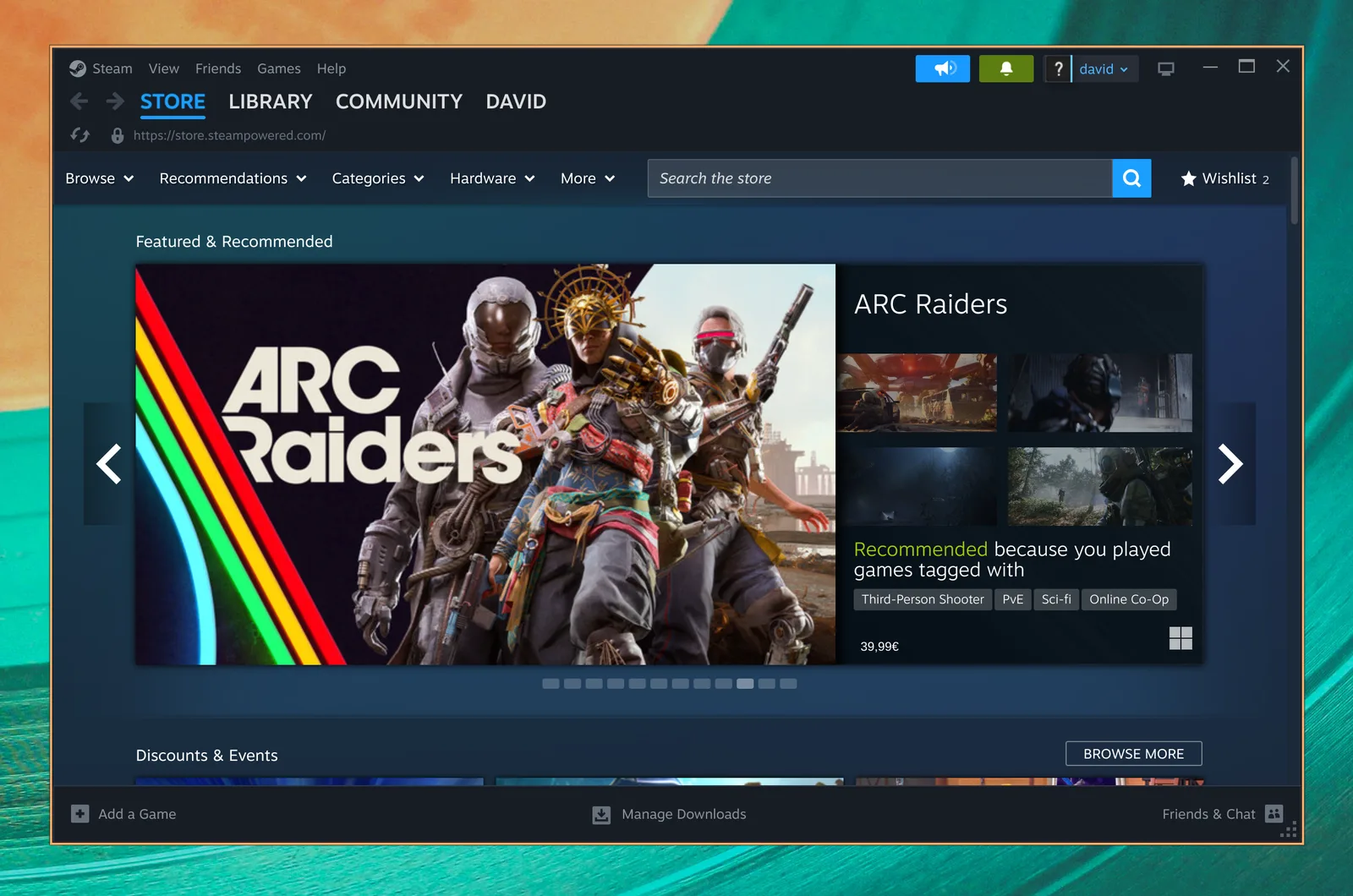
Image: Omarchy Steam setup screenshot. Credit: Omarchy manual.
Before installing games
Per the official Omarchy gaming manual, all gaming installers live under Install, Gaming in the app menu. The current manual uses Super + Space to open the menu, then start typing to filter, per the documentation.
Per the manual, Steam can take 10 to 20 seconds to start and may show no visual feedback while loading. Lutris and Heroic can also appear idle while installing in the background, per the same guide. Wait for the process instead of repeatedly launching installers.
Per the manual, Omarchy is Arch based and uses rolling packages. Check the current release and keep system updates controlled, because driver, Proton, and launcher changes can affect game compatibility.
| Path per manual | Install location | First expectation |
|---|---|---|
| Steam | Install, Gaming, Steam | Silent 10 to 20 second startup |
| RetroArch | Install, Gaming, RetroArch | Scan ROM directory after setup |
| Battle.net | Install, Gaming, Battle.net | GE-Proton based launcher |
| Lutris and Heroic | Install, Gaming, respective launcher | Background installation can look slow |
Steam and RetroArch
Per the official manual, install Steam from the Gaming menu, then launch it from the app menu. The manual points to Proton compatibility for modern Windows games, while leaving game-by-game support to the store and launcher.
Per the manual, install RetroArch from the same menu. It includes the libretro cores and comes preconfigured with the CRT Royale shader. Place BIOS files in ~/Games/bios and ROMs in ~/Games/roms, then scan the ROM directory from RetroArch.
Per the manual, RetroArch Game Launcher can create an individual app entry after choosing a core and ROM. This is a convenience path, not a promise that every BIOS or ROM set is licensed or compatible.
- Steam: Use the menu installer, then wait for the silent startup.
- RetroArch: Put BIOS and ROM files in the documented folders.
- Scan: Point RetroArch at
~/Games/roms. - Launch: Use the app menu or create a game entry.
Battle.net, Lutris, and Heroic
Per the official manual, Battle.net is a standalone path for listed Blizzard titles such as Diablo, StarCraft, and World of Warcraft. The manual identifies GE-Proton as the compatibility layer, so no separate Steam, Lutris, or Heroic install is required for that path.
Per the manual, Lutris covers Windows games from stores such as EA and Ubisoft Connect when no dedicated installer is listed. Heroic covers Epic Games Store titles as well as GOG and Amazon Prime Gaming, per the same documentation.
Per the manual, Heroic is for titles that do not rely on anti-cheat. Fortnite and Rocket League are explicitly excluded, per the current guide. Treat any store or anti-cheat warning as a compatibility boundary, not a promise that a workaround exists.
| Launcher | Use per official manual | Known boundary |
|---|---|---|
| Battle.net | Listed Blizzard games through GE-Proton | Game-specific behavior still matters |
| Lutris | EA and Ubisoft Connect Windows games | Installs can look stalled |
| Heroic | Epic, GOG, and Amazon Prime Gaming | No anti-cheat titles, including Fortnite and Rocket League |
Cloud and streaming
Per the official manual, Xbox Cloud Gaming and NVIDIA GeForce NOW are available as web app installers. The Xbox Cloud path is described as quick to start and suitable for Game Pass titles that do not run natively on Linux, per the guide.
Per the manual, Moonlight is preinstalled and streams games from a Windows PC running Sunshine. For a local network, the guide recommends native resolution, 120Hz, and maximum bitrate when the hardware and network allow it, per the documentation.
Per the manual, an Omarchy machine can become a Sunshine host with omarchy install service sunshine. That command opens Moonlight streaming ports for the LAN and Tailscale, per the official guide. Review network exposure before enabling remote access.
- Install the cloud or streaming option from Install, Gaming.
- For Moonlight, start Sunshine on the Windows host.
- Launch Moonlight from the Omarchy app menu.
- For host mode, run the documented Sunshine service command and review ports.
FAQ
Where are Omarchy gaming installers?
Per the official manual, use Install, Gaming in the app menu.
Why does Steam look stuck?
Per the manual, startup can take 10 to 20 seconds with no visual feedback.
Can Omarchy run Battle.net games?
Per the manual, the standalone Battle.net path uses GE-Proton for listed Blizzard titles.
Does Heroic run every Epic game?
No, per the manual. Anti-cheat titles such as Fortnite and Rocket League are excluded.
Where do ROMs go?
Per the manual, use ~/Games/roms and BIOS files in ~/Games/bios.
Why do hotkeys differ?
The current manual uses Super plus Space. Older Omarchy 3 pages show Super plus Alt plus Space, so follow the installed version.
Bottom Line
Omarchy covers native, retro, Windows, cloud, and streaming paths from one menu. Install only the launchers you need, test anti-cheat games early, and read the version-specific hotkey guide.
Related: Linux GPU gaming benchmarks on Bazzite OS | Bazzite OS July 2025 update and hardware support