
ClawTweaks for MSI Claw Handhelds: TDP and Profiles in 5 Steps [2026]
By Indie Kings | October 2, 2026
Updated October 2, 2026: ClawTweaks works on Intel MSI Claw handhelds only and the installer aborts on unsupported AMD models. This guide sets a global profile first and then adds per game profiles with auto switching.
ClawTweaks is an Xbox Game Bar widget for Intel MSI Claw handhelds, per the enterTheVoidCode/ClawTweaks GitHub README. It puts TDP control, power modes, controller options, gyro modes, display tuning, fan curves, and per game profiles in one overlay that you can open while a game runs. The project is a fork of GoTweaks, it is licensed under AGPLv3 plus MIT parts, and it has 107 stars, per the enterTheVoidCode/ClawTweaks GitHub README. The release branch was at v0.3.98.0 with 809 commits at the time of this guide, per the enterTheVoidCode/ClawTweaks GitHub README.
This guide shows TDP and profiles in 5 steps on supported Intel Claw models. It covers how to confirm your model, restore the Center M base, trust the certificate and install the msix package, enable the Gaming widget, and then build a global profile before adding per game profiles with auto switching. It also explains limiter modes, fan behavior, charge limits, and common install failures.
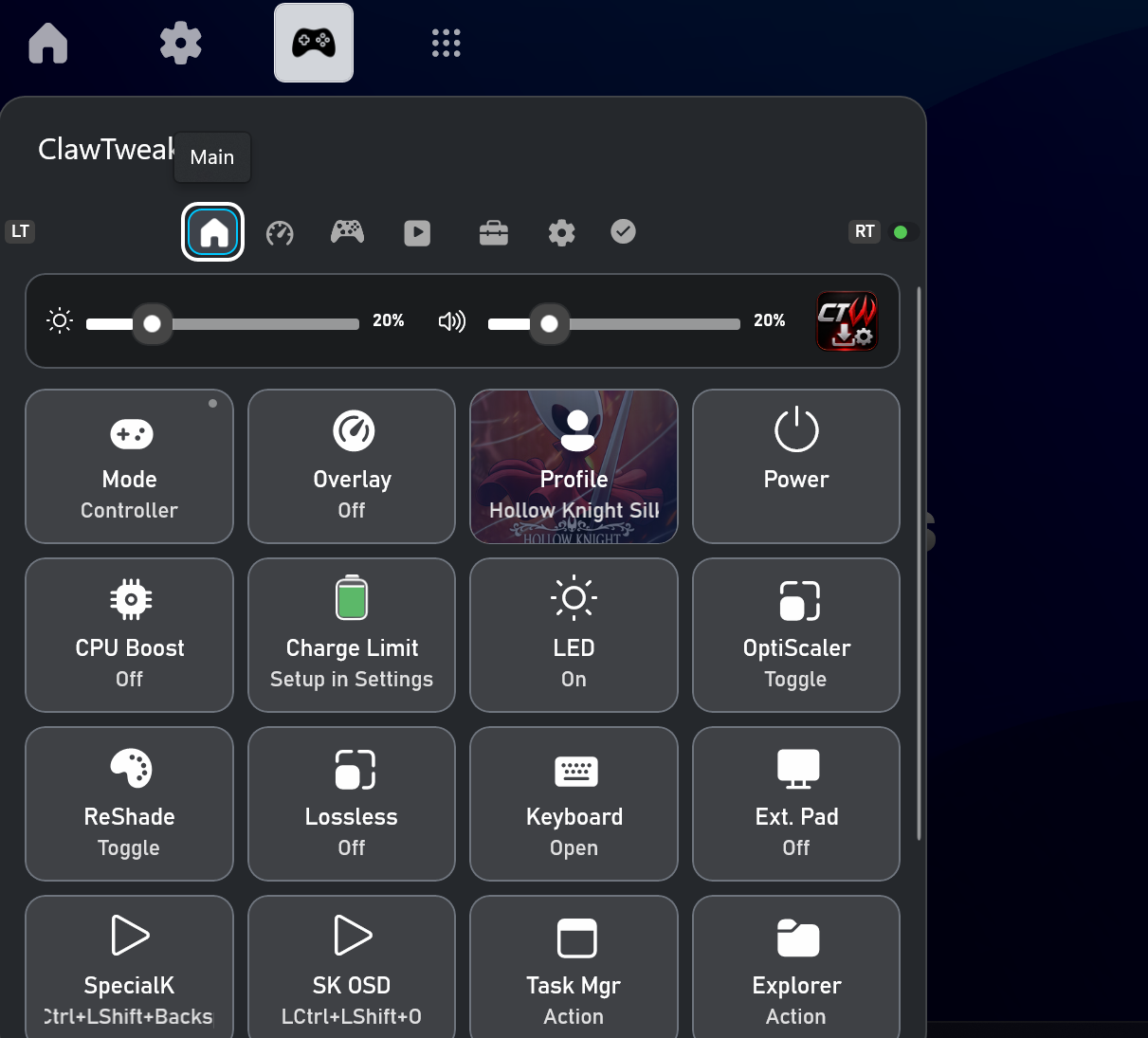
Image: ClawTweaks interface. Credit: enterTheVoidCode via GitHub.
What Is ClawTweaks
ClawTweaks is a community widget that lives inside Xbox Game Bar on Windows 11, per the enterTheVoidCode/ClawTweaks GitHub README. You press the Game Bar shortcut during play and change handheld settings without leaving the game or digging through desktop utilities. That in game access is the main reason to use it instead of juggling separate tools for power, controls, display, and fans.
The feature list is broad because handheld tuning touches many systems at once. ClawTweaks offers a VRR safe OSD, a single TDP slider plus PL2 boost, Intel IGCL versus RTSS FPS limiters, CPU boost and OS power modes, saturation and hue control per profile, per button remaps with M1 and M2 plus front OEM single and double click actions, gyro modes per game, controller and mouse modes, global plus per game plus AC and DC profiles with auto switching, RTSS OSD support, Lossless Scaling integration, EC fan curves with verification, and a firmware charge limiter, per the enterTheVoidCode/ClawTweaks GitHub README.
The profile system is the core idea. You create one global profile that works everywhere as a safe baseline. Then you create per game profiles that load automatically when a chosen game starts. You can also split behavior for AC wall power and DC battery power, so the same game can run higher limits on the charger and lower limits on battery. Auto switching removes the need to remember settings for each title.
The OSD approach matters for modern handheld displays. A VRR safe OSD shows stats without breaking variable refresh behavior, per the enterTheVoidCode/ClawTweaks GitHub README. RTSS OSD support adds a second path for users who already run RivaTuner Statistics Server. Lossless Scaling integration is included for users who use that frame generation and scaling tool, per the enterTheVoidCode/ClawTweaks GitHub README. RTSS, PawnIO, and Lossless Scaling are optional components rather than required installs.
Controls get unusual depth. Per button remaps let you change what physical inputs do in each profile. M1 and M2 back paddles can carry extra actions. Front OEM buttons support single and double click assignments. Gyro modes can change per game, which helps aim heavy shooters one way and menus or 2D titles another way. Controller and mouse modes let the same handheld act like a gamepad in action titles and like a mouse driven device in strategy or launcher screens [NEEDS VERIFICATION].
Display tuning is per profile as well. Saturation and hue controls let you set one look for vivid action games and a calmer look for desktop use or night play, per the enterTheVoidCode/ClawTweaks GitHub README. CPU boost and OS power modes round out the power side with Windows level behavior plus chip level boost control. EC fan curves with verification and a firmware charge limiter address noise and battery health, per the enterTheVoidCode/ClawTweaks GitHub README.
ClawTweaks is beta software and per game fan profiles are listed as coming soon, per the enterTheVoidCode/ClawTweaks GitHub README. Treat that status as real. Expect updates through the in app updater, read the README before each major change, and keep a known good global profile so you can recover fast if a beta build behaves oddly. The 809 commits on release branch v0.3.98.0 show active development, per the enterTheVoidCode/ClawTweaks GitHub README, but active development also means screens and options can shift between builds.
Device Support
Device support is strict and model specific. ClawTweaks supports Intel MSI Claw handhelds including Claw A1M with Meteor Lake, Claw 8 AI Plus and Claw 7 AI Plus A2VM with Lunar Lake, and Claw 8 EX with Panther Lake, per the enterTheVoidCode/ClawTweaks GitHub README. If you own one of those Intel models and run Windows 11 with Game Bar, you are in the supported group.
The A8 EX with AMD Z2E is NOT supported and the installer aborts on that hardware, per the enterTheVoidCode/ClawTweaks GitHub README. That abort is intentional protection rather than a bug. Do not try to force install on AMD silicon with compatibility modes or sideload tricks because embedded controller access and Intel specific libraries will not match [NEEDS VERIFICATION].
Use the table below to confirm your model before you download anything. Check the name on the box or rear label, then match the chip family, then read the status column. If your unit is not listed here, stop and read the README device section again before you proceed.
| Model | Chip family | ClawTweaks status |
|---|---|---|
| MSI Claw A1M | Meteor Lake Intel | Supported |
| MSI Claw 8 AI Plus | Lunar Lake Intel | Supported |
| MSI Claw 7 AI Plus A2VM | Lunar Lake Intel | Supported |
| MSI Claw 8 EX | Panther Lake Intel | Supported |
| MSI Claw A8 EX | AMD Z2E | Not supported, installer aborts |
Model names can confuse buyers because Claw 8 EX and Claw A8 EX look almost identical in plain text. The difference is one letter and a whole platform. Claw 8 EX with Panther Lake Intel silicon is supported. Claw A8 EX with AMD Z2E silicon is not supported. Read the rear label twice and match the store listing to the README if you bought used or refurbished [NEEDS VERIFICATION].
If you run another handheld brand or another MSI portable that is not a Claw, ClawTweaks is not for that device. The project targets the Intel Claw embedded controller and Intel graphics control paths, per the enterTheVoidCode/ClawTweaks GitHub README. Porting expectations to other brands will lead to failed installs or missing controls.
What You Need
Start with the software base. Center M is required as the base install and then it stays hidden while ClawTweaks handles the interface, per the enterTheVoidCode/ClawTweaks GitHub README. Restore or reinstall Center M first if you removed it during debloating. ClawTweaks does not replace that low level base, it builds on it.
You also need Windows 11 plus Game Bar plus ViGEmBus and HidHide, per the enterTheVoidCode/ClawTweaks GitHub README. Game Bar hosts the widget. ViGEmBus and HidHide support virtual controller handling and controller hiding for remaps and mode switches. Install those prerequisites before you judge stability because missing drivers create issues that look like app bugs.
Optional tools expand what ClawTweaks can show and do. RTSS adds OSD paths and one FPS limiter route. PawnIO supports added input behavior. Lossless Scaling adds scaling and frame generation integration for users who own that tool, per the enterTheVoidCode/ClawTweaks GitHub README. Skip the optional set on first install if you want the smallest test surface, then add one at a time after profiles work.
Charge your Claw, connect wall power for the install pass, and close games and overlays. Certificate trust is once per device, msix install follows, Gaming widget enable follows, and in app updates handle later builds, per the enterTheVoidCode/ClawTweaks GitHub README. A clean boot with no pending Windows restart reduces the chance of a Game Bar registration miss [NEEDS VERIFICATION].
Back up current settings before you change power behavior. Note your present Center M mode, Windows power mode, fan behavior, and any per game tools you already use. Write down one stable TDP or power preset that you like so you can rebuild it as your ClawTweaks global profile. That baseline makes later tuning faster and safer.
Install in 5 Steps
Follow these five steps in order. Each step depends on the prior one, so skipping creates errors that are hard to trace later. The whole flow is certificate trust once per device, msix install, Gaming widget enable in Game Bar, and in app updater for later builds, per the enterTheVoidCode/ClawTweaks GitHub README.
- Step 1 confirm you own a supported Intel Claw model. Match your unit to Claw A1M Meteor Lake, Claw 8 AI Plus Lunar Lake, Claw 7 AI Plus A2VM Lunar Lake, or Claw 8 EX Panther Lake, per the enterTheVoidCode/ClawTweaks GitHub README. If you own Claw A8 EX with AMD Z2E, stop here because the installer aborts on that platform. Check Settings plus System plus About for the processor string and compare it to the box label if anything looks unclear [NEEDS VERIFICATION]. Do not proceed on unsupported silicon.
- Step 2 restore Center M as the hidden base. Reinstall Center M if you removed it, launch it once, confirm the handheld responds to its base controls, then leave it installed and hidden while ClawTweaks provides the daily interface, per the enterTheVoidCode/ClawTweaks GitHub README. Verify ViGEmBus and HidHide are present for controller handling. Reboot after driver installs so Game Bar sees a stable stack. This base step prevents missing device access later.
- Step 3 trust the certificate once per device and install the msix package. Trust the project certificate first because Windows will not install the signed msix cleanly without that trust on this distribution path, per the enterTheVoidCode/ClawTweaks GitHub README. Install the certificate for the local device as instructed in the README, then run the msix install. Do this once per device rather than once per user account where the README directs device scope. Keep the exact msix file you installed so you can repair if Game Bar registration breaks [NEEDS VERIFICATION].
- Step 4 enable the Gaming widget in Game Bar. Open Game Bar on Windows 11, open the widget list, find the ClawTweaks Gaming widget, enable it, and pin it if you want fast access during play, per the enterTheVoidCode/ClawTweaks GitHub README. Launch a light game or 3D app, open Game Bar again, confirm the widget appears, and test one safe change such as OSD on or off. If the widget does not appear, reboot, reopen Game Bar, and recheck the widget list before reinstalling anything.
- Step 5 set a global profile first and then add per game profiles with auto switching. Create a global profile with sane TDP, PL2 boost behavior, CPU boost, OS power mode, fan curve, display saturation and hue, controls, gyro, and limiter choice. Test that global profile in two or three games plus desktop use. Then add per game profiles for demanding titles and for low power indie titles, assign AC and DC variants where useful, and turn on auto switching so profiles follow the active game, per the enterTheVoidCode/ClawTweaks GitHub README. Use the in app updater for later builds after profiles work.
Take your time on Step 5 because it controls daily behavior more than install mechanics. A calm global profile with moderate TDP, stock like fan behavior, and no aggressive boost is easier to live with than a max power global that makes every indie game loud and hot [NEEDS VERIFICATION]. Save aggressive tuning for named per game profiles where you actually need extra frame rate. Name profiles clearly with game plus power context such as Global Balanced, Shooter Wall Power, and Indie Battery so auto switching stays readable.
If an update arrives, read the release notes before applying it through the in app updater, per the enterTheVoidCode/ClawTweaks GitHub README. Beta software can change widget layout, profile fields, or fan handling between builds. Keep a screenshot or written note of your working global profile so you can restore values fast after a beta update resets or migrates settings [NEEDS VERIFICATION].
TDP and Profiles
TDP control is the reason many users install ClawTweaks. The app uses a single TDP slider plus PL2 boost control, per the enterTheVoidCode/ClawTweaks GitHub README. One slider keeps daily use simple. PL2 boost handles short burst power on top of the sustained limit. Use sustained TDP for heat and battery planning and use boost for load spikes and scene changes.
Start from your global profile and learn how each game responds before pushing limits. Heavier 3D titles may want a higher sustained value plus a modest boost window. Lighter 2D titles and visual novels often hold full frame rate at much lower sustained power with boost kept low [NEEDS VERIFICATION]. Record frame rate, fan noise, and skin temperature notes for each test so later per game profiles use facts rather than memory.
CPU boost and OS power modes interact with TDP. CPU boost can raise responsiveness and heat at the same time. OS power modes change Windows background behavior and scheduling posture. Change one variable at a time, test in the same game scene, and keep the combination that holds frame time stable with the least heat and noise [NEEDS VERIFICATION]. Avoid maxing every control at once because stacked boosts can create thermal cycling that feels worse than a lower stable setting.
FPS limiters deserve care because the wrong limiter can add latency or conflict with variable refresh. ClawTweaks offers Intel IGCL versus RTSS FPS limiters, per the enterTheVoidCode/ClawTweaks GitHub README. IGCL is the Intel graphics control library path. RTSS is the RivaTuner Statistics Server path for users who run that tool. Use the table below to pick a starting point, then test in your own titles.
| Limiter mode | Path | Best for | Notes |
|---|---|---|---|
| IGCL limiter | Intel graphics control library | Intel Claw owners who want a driver level cap without RTSS | Use when you want fewer background tools and a simple per profile cap |
| RTSS limiter | RivaTuner Statistics Server | Users who already run RTSS OSD or want RTSS frame cap behavior | Requires RTSS installed, adds another tool but pairs with RTSS OSD |
Pair the limiter with the OSD that matches your stack. The VRR safe OSD avoids breaking variable refresh presentation, per the enterTheVoidCode/ClawTweaks GitHub README. RTSS OSD is the alternate path when RTSS is part of your setup. Do not run both OSDs at full detail at once during first tests because overlapping overlays make frame time reading harder [NEEDS VERIFICATION]. Pick one OSD, learn your baseline, then add detail.
Global plus per game plus AC and DC profiles with auto switching tie all of this together, per the enterTheVoidCode/ClawTweaks GitHub README. Global is the fallback. Per game entries override global when their executable runs. AC and DC variants split wall versus battery behavior inside the same game entry. Auto switching applies the right entry without manual changes when you switch titles or unplug.
Build profiles in this practical order. First set global balanced power, neutral display, standard controller mode, and a safe fan curve. Second clone that global into a demanding game profile and raise TDP and boost in small steps. Third clone global into a battery indie profile and lower TDP, calm boost, and set a battery friendly FPS cap [NEEDS VERIFICATION]. Fourth set display saturation and hue per profile if you care about color. Fifth set gyro, remaps, M1 and M2, front OEM single and double click, and controller versus mouse mode per game.
Controls and gyro reward per game thought. A shooter may want gyro aim plus M1 and M2 for crouch and reload plus aggressive stick response. A menu heavy RPG may want mouse mode for inventory screens and standard controller mode for combat [NEEDS VERIFICATION]. Front OEM single click can open the overlay or mute, while double click can switch power behavior, per the per button remap design in the enterTheVoidCode/ClawTweaks GitHub README. Keep double click actions non destructive so an accidental double press never quits or resets a run.
Fans and battery health close the loop. EC fan curves with verification let you shape noise against temperature with a check that the curve applied, per the enterTheVoidCode/ClawTweaks GitHub README. Firmware charge limiter caps max charge for users who dock often and want slower battery wear. Per game fan profiles are coming soon rather than available now, so set one trusted global fan curve today and revisit per game fan tuning after that feature ships, per the enterTheVoidCode/ClawTweaks GitHub README.
Lossless Scaling integration is there for owners of that tool, per the enterTheVoidCode/ClawTweaks GitHub README. Treat scaling as a per game choice rather than a global default. Some titles scale cleanly and gain smooth motion, others show artifacts that look worse than a lower native frame rate [NEEDS VERIFICATION]. Test scaling inside the same per game profile that holds the matching TDP and limiter so all three settings stay together when auto switching fires.
What Fails and Why
AMD Claw models fail by design. The Claw A8 EX with AMD Z2E is not supported and the installer aborts, per the enterTheVoidCode/ClawTweaks GitHub README. The fix is to not install ClawTweaks on that hardware. Use MSI and AMD sanctioned tools for that model instead of forcing an Intel focused widget onto the wrong embedded controller [NEEDS VERIFICATION]. If you bought the wrong variant by mistake, return or exchange issues belong with the seller rather than with this project.
Missing Center M breaks the base. ClawTweaks needs Center M installed and then hidden, per the enterTheVoidCode/ClawTweaks GitHub README. Users who debloat aggressively often remove Center M and then report missing controls or failed hardware access. Reinstall Center M, launch it once, reboot, and retest the widget. Keep Center M installed even if you never open it again.
A skipped certificate step breaks msix install. Certificate trust is once per device on this path, per the enterTheVoidCode/ClawTweaks GitHub README. If Windows blocks install or Game Bar never lists the widget, the usual cause is missed trust scope or installing before trust completed. Remove the partial install, redo device scoped trust exactly as the README shows, reboot, then install the msix again. Do not skip reboot if Windows has pending updates because Game Bar registration can stay incomplete until restart [NEEDS VERIFICATION].
Expecting per game fan curves now leads to wasted time. Per game fan profiles are coming soon, per the enterTheVoidCode/ClawTweaks GitHub README. The present build supports EC fan curves with verification at the level the README documents, not a full per title fan library. Set one verified global fan curve, save louder and quieter variants as named globals if needed, and wait for the per game fan update instead of hunting menus that do not exist yet.
Other common snags include missing ViGEmBus or HidHide, Game Bar disabled in Windows settings, RTSS limiter chosen without RTSS installed, and aggressive global TDP applied to every title. Install prerequisites first, confirm Game Bar is on, match limiter choice to installed tools, and keep global moderate while per game entries carry extremes. When in doubt, reset to your known good global and retest with a single variable changed [NEEDS VERIFICATION].
FAQ
Does ClawTweaks support AMD MSI Claw models?
No. Intel Claw models are supported and Claw A8 EX with AMD Z2E is not supported, with the installer aborting on that hardware, per the enterTheVoidCode/ClawTweaks GitHub README.
Which Intel Claw models are supported?
Claw A1M Meteor Lake, Claw 8 AI Plus and Claw 7 AI Plus A2VM Lunar Lake, and Claw 8 EX Panther Lake are supported, per the enterTheVoidCode/ClawTweaks GitHub README.
Do I need Center M if I use ClawTweaks?
Yes. Center M is required as the base and then it stays hidden while ClawTweaks provides the daily widget interface, per the enterTheVoidCode/ClawTweaks GitHub README.
Should I use IGCL or RTSS for the FPS limit?
Use IGCL for a driver level cap without extra tools and use RTSS when you already run RivaTuner Statistics Server and want its cap plus OSD behavior, per the enterTheVoidCode/ClawTweaks GitHub README.
Are per game fan curves available now?
No. EC fan curves with verification are available now and per game fan profiles are listed as coming soon, per the enterTheVoidCode/ClawTweaks GitHub README.
How do updates work after install?
Trust the certificate once per device, install the msix package, enable the Gaming widget in Game Bar, and take later builds through the in app updater, per the enterTheVoidCode/ClawTweaks GitHub README.
Bottom Line
ClawTweaks gives Intel MSI Claw owners a Game Bar home for TDP, PL2 boost, limiters, controls, gyro, display, fans, and charge limits with global plus per game plus AC and DC auto switching profiles, per the enterTheVoidCode/ClawTweaks GitHub README. Confirm an Intel model, restore Center M, trust the certificate once, install the msix, enable the Gaming widget, build a calm global profile, and then add focused per game profiles. That order keeps setup short and daily use automatic.
The project is beta software from enterTheVoidCode as a fork of GoTweaks under AGPLv3 plus MIT parts with 107 stars and 809 commits on release branch v0.3.98.0, per the enterTheVoidCode/ClawTweaks GitHub README. Expect iteration, use the in app updater, and do not expect per game fan curves until that roadmap item lands. For supported Intel Claw handhelds, the profile system is the reason to install it: set global once, tune per game once, and let auto switching handle the rest.
Sources
Device support, features, prerequisites, install flow, profiles, fan curves, charge limiter, beta status, license, fork origin, star count, commit count, and version data in this guide are attributed to the enterTheVoidCode/ClawTweaks GitHub README. Practical tuning order, test methods, and example profile names beyond those README facts are marked [NEEDS VERIFICATION] where they appear.
Primary source: enterTheVoidCode/ClawTweaks GitHub repository README. Docs mirror: enterTheVoidCode/ClawTweaks GitHub wiki.