
Ls Addon Manager Brings DLSS 5 To Lossless Scaling
By Indie Kings | October 11, 2026
Updated October 11, 2026: A free and MIT licensed addon manager for Lossless Scaling adds an addon system to the popular scaling app, per the official repository README. It loads alongside Lossless Scaling, keeps four addons in one window, and brings DLSS 5 Neural Rendering plus DLSS, FSR and XeSS upscaling to games that never shipped with them.
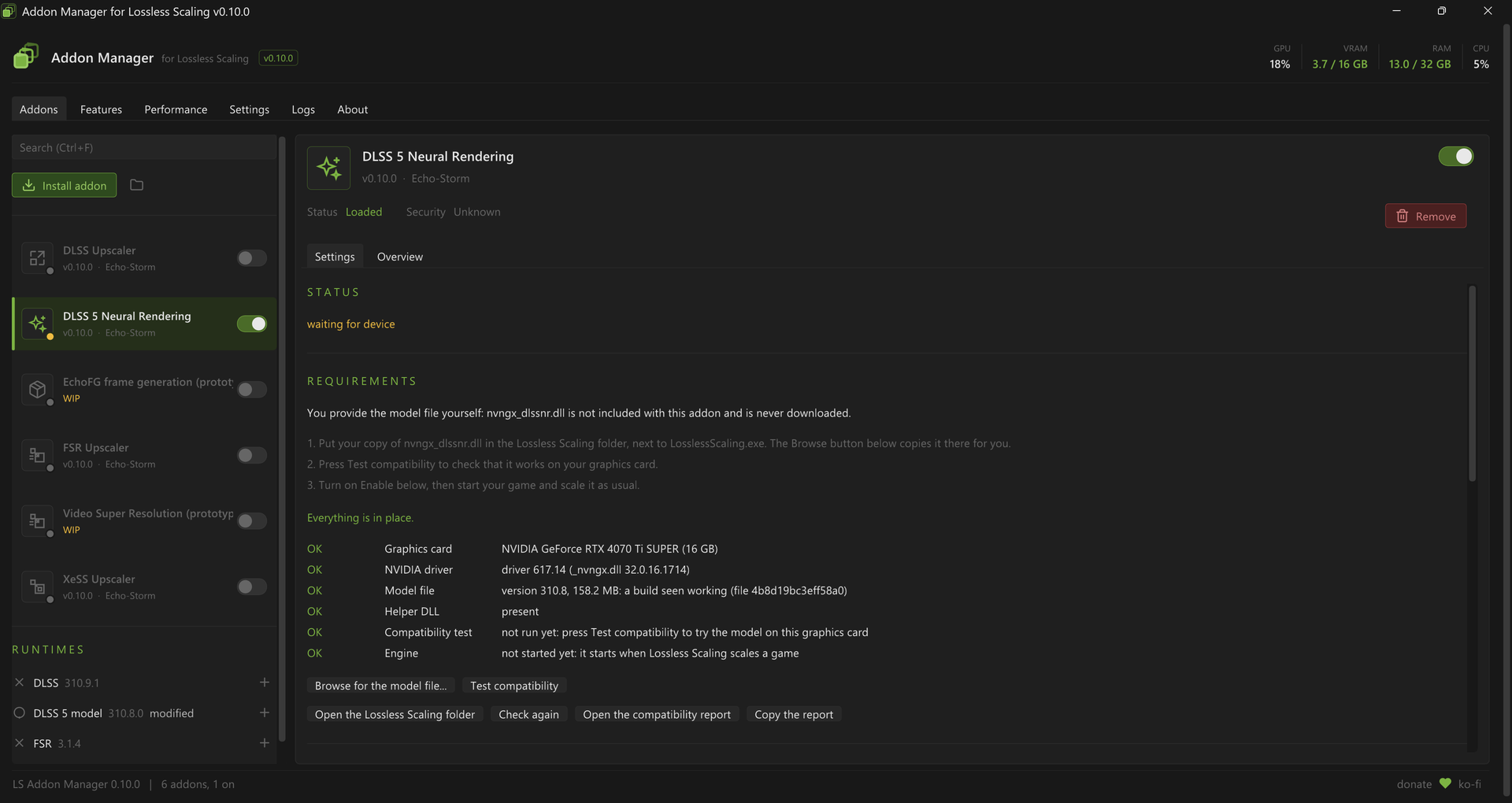
Image: ls-addon-manager window. Credit: GitHub repository Echo-Storm/ls-addon-manager.
What ls-addon-manager Is
Lossless Scaling is a widely used scaling and frame generation app sold on Steam, and ls-addon-manager extends it with a proper addon system, per the official repository README. The manager loads alongside Lossless Scaling and gives players one window for everything the addons provide. That single window idea matters because each addon has its own panel, settings, runtimes and logs, and the manager keeps them together.
The project describes itself with a short slogan, Lossless Scaling extended, per the official repository README. The current release named in the README head is 0.10.0, on the way to 1.0, paired with Lossless Scaling 3.2.2.0 on Windows 10 or 11 x64. It is free, MIT licensed and unofficial, and the README states plainly that it is not affiliated with the Lossless Scaling developers.
This site previously covered community DLSS on Intel experiments and the OptiScaler and Upshift upscaling projects.
Newcomers should read the scope correctly, per the official repository README. This is not a new scaler inside Lossless Scaling and it is not a fork of Lossless Scaling. It is a manager plus addons that run next to Lossless Scaling, hook the frames it captures or presents, and put their own picture processing into its output. Removing the manager puts everything back, because nothing in Lossless Scaling is patched on disk.
The Addons at a Glance
Per README, the package centers on four addons, with a fifth prototype that is visible but not shipped. The four are DLSS 5 Neural Rendering and three temporal upscalers named DLSS Upscaler, FSR Upscaler and XeSS Upscaler. The prototype is a Video Super Resolution addon whose source sits in the repository while the README says it is not in the package.
Per README:
| Addon | What it does | Hardware needed | Starts |
|---|---|---|---|
| DLSS 5 Neural Rendering | NVIDIA neural rendering model on every frame Lossless Scaling shows, for a new look in any game | NVIDIA RTX plus your own model file | On |
| DLSS Upscaler | NVIDIA DLSS in place of NIS, for upscaling or DLAA at native size | NVIDIA RTX | Off |
| FSR Upscaler | AMD FSR 3.1.4 or FSR 4.1.1b in place of NIS | Any DirectX 12 card | Off |
| XeSS Upscaler | Intel XeSS 2.0.2 in place of NIS | Any card with Shader Model 6.4 | Off |
| Video Super Resolution, work in progress | RTX Video Super Resolution in the same slot, aimed at mostly still pictures | NVIDIA RTX, plus a separately provided SDK or self started download | Not available yet, greyed out |
Only one upscaler runs at a time, per the official repository README. Any of the upscalers can run beside Neural Rendering, so a player can combine a new look with a temporal upscale in the same session. Every runtime the upscalers need ships with them, which keeps first use simple.
The headline promise is access, per the official repository README. The DLSS, FSR and XeSS upscalers put a real temporal upscaler where Lossless Scaling otherwise uses its NIS scaler, so games that never had an upscaler get one. Neural Rendering goes further and applies a neural model to every frame Lossless Scaling presents, whether that frame is real or generated.
Readers who want the freshest framing should note the README tip block for 0.10.0, per the official repository README. It lists updates that close Lossless Scaling for the user during upgrade, a check that waits for the game, two upscaler tests around repeated pictures and lighter upscaling on a full card, addon detection of a repeating source, many fixes from three reviews, and the Video Super Resolution prototype marked as work in progress and excluded from the package.
DLSS 5 Neural Rendering in Detail
Neural Rendering is the most ambitious addon in the set, per the official repository README. It runs NVIDIA DLSS 5 neural model work on Lossless Scaling frames and composites the result onto every presented frame without making Lossless Scaling wait. That no wait design is load bearing, because a post process that stalls the present path would undo the smoothness players buy Lossless Scaling for.
It works with frame generation on or off, per the official repository README. With frame generation on, the model result carries onto generated frames along the motion, and with frame generation off, the model takes the presented frames directly. Its own per pixel motion measurement keeps the picture coherent while the camera turns, which is where naive screen space effects tend to smear.
Looks are a headline feature, per the official repository README. A look is a saved set of sliders, one look per game is possible, the active look follows the game in focus, and a hotkey cycles saved looks. That structure suits players who bounce between games with very different art direction, since a single global preset rarely fits a dark horror game and a bright MMO at once.
The HUD controls deserve attention from MMO and RPG players, per the official repository README. The addon lets players draw protected areas on a snapshot of the game, such as action bars, chat boxes and minimaps, and the model must leave those regions alone. Interface text is exactly where neural enhancement can do the most harm, so masking it out preserves readability while the 3D scene gets the new look.
Picture controls are broad, per the official repository README. The panel exposes intensity, fine detail, local contrast, skin detail, sharpening, tone, colour, shadows and highlights, film grain, temporal smoothing, and a ghost guard for areas where motion cannot be trusted. HDR games in scRGB and HDR10 are supported, with only the model change composited back so highlights keep their brightness.
Comparison tooling is built for play, not for lab captures, per the official repository README. Players can flip before and after, open a split view with the original on the left and the processed picture on the right, and save before and after pictures of the same moment. Auto quality keeps the model inside a time budget, and a compatibility test exercises the model on the local card before a play session starts.
Cost is stated with a concrete test rig, per the official repository README. On an RTX 4070 Ti SUPER with a 1912x1080 model input, the addon costs about 5 to 9 ms per frame, with 8.5 ms at 4K in World of Warcraft cited as a reference point. The addon README linked from the main README carries the deeper details, and players should treat those numbers as a starting budget rather than a promise for other cards and games.
There is one hard requirement to plan around, per the official repository README. Neural Rendering needs a model file the player provides, named nvngx_dlssnr.dll, and the project states that it never ships that file, never downloads it, and does not say where to get it. The supported flow is to place it next to LosslessScaling.exe, optionally with help from Setup or the addon Browse for the model file button, and then press Test compatibility in the addon panel.
Testing context is narrow and honest, per the official repository README. The author cites World of Warcraft Forever, Fallout New Vegas through Tale of Two Wastelands, Silent Hill f in HDR and Metro 2033 Redux, tested on an RTX 4070 Ti SUPER under Windows 11. Other games and cards are described as untested so far, with reports welcome, so readers should treat community results as early signal rather than settled fact.
The DLSS, FSR and XeSS Upscalers in Detail
The three upscalers share one job, per the official repository README. Lossless Scaling scales a game window up to the screen one frame at a time, and the upscalers replace its NIS pass with a temporal upscaler that reads several frames plus the motion between them. The goal is a steadier picture with cleaner and smoother edges than a single frame stretch can deliver.
The striking claim is that the game needs no native support, per the official repository README. The addons estimate motion from the frames themselves, so a title that never shipped DLSS, FSR or XeSS can still receive temporal upscaling at the Lossless Scaling layer. To use one, the player switches it on in the addon list, selects NIS as the Scaling Type in Lossless Scaling, and runs the game in a window smaller than the screen, for example 2560x1440 on a 4K screen.
At native size the same addons change roles, per the official repository README. When the game window already matches the screen, there is nothing to upscale, so the addon anti aliases instead. That DLAA style mode is useful for older games with no anti aliasing path, where edge shimmer is the main image quality problem.
| Upscaler | Runs on | Versions offered | Noted strength |
|---|---|---|---|
| DLSS | NVIDIA RTX | Auto by default, plus K, L, J, M and E model options described in README | Edge smoothing, including a no flicker Auto path at native size |
| FSR | Any DirectX 12 card | FSR 3.1.4 signed build or FSR 4.1.1b team build noted in README | FSR 3 for low cost and crisp text, FSR 4 for motion |
| XeSS | Any card with Shader Model 6.4, including Intel Arc, NVIDIA and AMD | XeSS 2.0.2 signed build | Matrix unit path on Intel Arc |
Choosing between them follows the hardware, per the official repository README. On an NVIDIA RTX card the README suggests trying DLSS and FSR 4, on other cards it suggests FSR, and on Intel Arc it suggests XeSS. All three were tried in World of Warcraft, so that MMO is the most documented reference game for side by side impressions.
The shared feature list is long, per the official repository README. All three process every presented frame with frame generation on or off, support HDR games in scRGB and HDR10 through the upscaler HDR mode with highlights preserved, handle 4:3 and other window shapes by upscaling into the region Lossless Scaling uses while leaving borders alone, and add stability, edge smoothing and sharpening beyond the vendor defaults. Colour and tone controls such as vibrance, saturation, shadows, highlights, brightness, contrast and gamma apply before upscaling so they cost nothing extra, settings follow the focused game, and a before and after view plus live numbers help while playing.
Motion handling reflects a real constraint, per the official repository README. Lossless Scaling frames carry none of the per frame camera jitter that a native game integration feeds its temporal upscaler, and that jitter is where a temporal algorithm finds extra detail. The README cites recording based research in its docs folder and says the addons lean on a resample of the new frame where the picture moves to avoid trailing, while the upscaler smooths at rest with a Sharpness at rest slider to trade some of that smoothing back for sharpness.
The performance table below is quoted from the README test notes on the same RTX 4070 Ti SUPER rig, per the official repository README. FSR 4 costs more than FSR 3.1, XeSS at two upscaled steps was not yet measured at README time, and the panel status line shows live cost on the local card.
| Case | DLSS | FSR 3.1 | XeSS |
|---|---|---|---|
| 1920x1080 to 3840x2160 | See live status line on your card | About 1.5 ms | Not measured yet |
| 2560x1440 to 3840x2160 | About 2.4 ms | About 1.85 ms | Not measured yet |
| 3840x2160 at one to one, anti aliasing | About 4.2 ms with model E | About 3.3 to 3.7 ms | About 2.7 to 2.8 ms |
Practical advice in the README is refreshingly direct, per the official repository README. If a game has its own MSAA anti aliasing, switch it on because no upscaler can reconstruct what MSAA resolves at the source. The upscaler guide in the addon docs covers every setting, and the troubleshooting section quoted later in this article addresses the common NIS versus upscaler confusion.
What the Manager Itself Does
Around the addons sits the manager, and its job list is closer to a small platform than a launcher, per the official repository README. It installs and switches addons, shows machine load at a glance, explains frame rate limits in plain words, backs up every setting and updates itself. Because it opens with Lossless Scaling and hides to the notification area, it stays present without sitting in the middle of the screen.
The header and Performance tab carry the monitoring story, per the official repository README. The header shows graphics card load and memory plus system memory and processor use on every tab. The Performance tab adds frame rate and frame times, per addon cost, GPU load, power, clocks, temperature and memory, and a plain words reading such as a power limit notice when that is the binding constraint.
Per README:
| Manager area | What it does | Why it matters during play |
|---|---|---|
| Addons tab | Addon list with switch, icon and live status, Runtimes list, and the selected addon settings | One place to enable, tune and verify the active stack |
| Features tab | ReShade input passthrough plus Windowed mode and second monitor support | Keeps overlays and window layouts working while scaling |
| Performance tab | Frame times, addon cost, GPU telemetry and a plain words limit diagnosis | Shows whether the GPU, the addon or the game frames are the problem |
| Settings tab | Backup and restore, interface size, start up and hotkey, updates, security, log detail and diagnostics file | Makes settings portable and bug reports complete |
| Logs tab | Last 10,000 log entries filtered by level | Speeds up triage without digging through files |
| About tab | Bundled contents, version and updates, credits | Confirms exactly what is installed |
Addon handling avoids folder spelunking, per the official repository README. Players can install from a folder, a zip or a DLL, or drop a file onto the window, and Remove moves an addon aside instead of erasing it. The Runtimes list shows every file the addons run on, with version, loaded state and signature status, and a plus control swaps to another file while the game runs.
Bug capture is unusually thoughtful, per the official repository README. An addon keeps the last few seconds of frames and can save them as a file that replays the problem on another computer. Recording is one shared setting across all addons, switched on in any panel, and the hotkey section below gives the save key. A diagnostics zip of logs and settings can be built from the Settings tab, and the README stresses that nothing is uploaded automatically.
Safety and accessibility get explicit treatment, per the official repository README. A faulting addon cannot take Lossless Scaling down, settings write atomically, and optional SHA-256 checks guard addon DLLs. Interface size scales from 75 percent to 200 percent and stays sharp on high density displays. Closing the window stops nothing because the manager hides to the notification area, where Windows may tuck its icon under the overflow arrow by the clock.
Two built in features live on the Features tab and both start off, per the official repository README. ReShade input passthrough lets mouse and keyboard reach a ReShade overlay while Lossless Scaling scales the game, toggled with Home. Windowed mode and second monitor support provides a virtual display sized to the game window, with split screen and side by side options, so Lossless Scaling works with a windowed game or on a second monitor after a restart.
| Hotkey | Action | Scope |
|---|---|---|
| Ctrl plus Shift plus F12 | Show or hide the manager | Manager |
| Ctrl plus Shift plus F7 | Before and after against original or NIS | Every addon |
| Ctrl plus Shift plus F8 | Split view, original left and processed right | Neural Rendering |
| Ctrl plus Shift plus F2 and F3 | Sharpening down and up | Every addon |
| Ctrl plus Shift plus F4 | Before and after pictures, two PNG stills of the same moment | Every addon |
| Ctrl plus Shift plus F10 | Next saved look | Neural Rendering |
| Ctrl plus Shift plus F9 | Steps through NIS and enabled upscalers with a label, temporary test | Upscalers |
| Ctrl plus Shift plus F1 | Save the recording of the last few seconds | Every addon, when Recording is on |
| Home | ReShade input passthrough on and off | Manager |
Hotkeys work while the game has focus, and the game still sees the key, per the official repository README. The defaults therefore avoid keys games commonly use alone, and each addon Compare and hotkeys section allows changes when a clash appears. The F9 stepping control is called out as a temporary test that is not configurable, so the README warns against binding F9 to anything else.
Install, Setup and Requirements
Requirements are short, per the official repository README. The project targets Windows 10 or 11 x64, names Lossless Scaling 3.2.2.0 as the companion release, and ships the manager plus addons for that environment. Players on older operating systems or non Windows platforms are outside the documented scope.
The normal install uses a guided Setup, per the official repository README. The flow is to close Lossless Scaling, run the Setup executable from the release archive, let it locate the Lossless Scaling folder whether it came from Steam or not, and accept the offered Install, Update, Repair or Uninstall action. After install, starting Lossless Scaling opens the manager by itself, with Neural Rendering on and the upscalers off until enabled.
Setup file handling is careful, per the official repository README. It preserves the stock engine library under a backup name while the manager forwards to it, places its own library plus the addons folder, backs up everything it replaces into a backups folder, verifies every file after copying, and rolls the folder back if anything fails. It never touches user settings or other addons, refuses to run while Lossless Scaling runs from that folder, and asks for administrator rights only when the folder needs them, for example under Program Files.
Lossless Scaling updates need one extra step, per the official repository README. Such an update may restore the stock library, so running Setup again and choosing Repair puts the manager back in place. Like every file in the project, Setup is unsigned, so Windows SmartScreen may prompt, and the README describes the More info then Run anyway path while noting the installer source ships in the repository.
Manual installation exists for advanced users, per the official repository README. The documented path closes Lossless Scaling, opens its folder, renames the stock library once while keeping it, extracts the release files with a Setup command switch, and copies the manager library, icon files and addons folder into place. Updating means extracting the new release and copying over the old files, while a Lossless Scaling update means refreshing the preserved stock library before putting the manager library back.
Updates Without Interrupting Play
The update checker is polite by design, per the official repository README. It checks at start up when the last check is over an hour old and then once a day while open, waits while a game is being scaled so nothing pops over gameplay, asks once when a release exists, and keeps an Update available badge in the header for later. The Settings Updates area can turn automatic checks off, while Check now always works.
The offer dialog verifies before it installs, per the official repository README. It downloads the release, checks size and SHA-256 against the published values, and confirms the Setup inside reports the expected version. Players then choose between closing Lossless Scaling and installing at once, with an automatic restart afterwards, or installing when they close it themselves, with Setup waiting. If Lossless Scaling does not close on request, for example because a dialog sits open in it, the offer explains that and provides Ask again and End it now paths.
Settings carry over through updates and Setup is hashed again just before it starts, per the official repository README. Dismissal options include asking again after the next check or skipping the release until a newer one appears, with the About tab keeping the offer reachable. Those checks plus a user requested download are the only times the manager goes online, so offline play stays offline. Manual updating remains a matter of running Setup from the release archive and choosing Update.
If Something Goes Wrong
The troubleshooting table in the README is unusually specific, and the pattern below follows it closely, per the official repository README. A manager that never appears is often just hidden, so the first moves are the overflow arrow by the clock or the show and hide hotkey, followed by a Repair run if a Lossless Scaling update restored the stock library. A Setup complaint about a running app usually means the notification area icon is still alive, so fully closing Lossless Scaling and pressing Check again clears it.
Folder detection, security prompts and addon state each have a first answer, per the official repository README. If Setup cannot find the folder, the Use a different folder control plus manual selection sets a remembered path. If SmartScreen or antivirus objects, the README frames it as an unsigned file false positive and points to hash comparison, self building or explicit permission, with a note that removing a self test helper only disables Test compatibility. If Neural Rendering reports a missing model file, the fix is to place the user provided library next to the main executable and run the compatibility test.
Picture problems usually trace to one toggle, per the official repository README. An upscaler that appears to do nothing is often running under the wrong Scaling Type, so NIS must be selected in Lossless Scaling, and the panel status line states what the upscaler is actually doing. A DLSS panel naming a non NVIDIA card means Lossless Scaling itself runs there, so the Preferred GPU setting or a switch to FSR or XeSS resolves it. An FSR 4 problem has a named fallback, namely setting the FSR version back to 3.1.4 in the panel, with automatic fallback to the shipped file if a chosen file goes missing.
HDR, windowed mode, pacing and reporting close the loop, per the official repository README. Washed out HDR output calls for a manual Frame encoding choice plus a report of which value worked, while neon orange or cyan HDR artifacts in Neural Rendering mark an old build that predates the 0.9.15 fix. Windowed mode needs a Lossless Scaling restart so its virtual display exists before start up. Stutter triage starts with the What stands out lines under Status, which say in plain words whether source frames are uneven or the card is full, and a complete report pairs a saved recording with the addon log and frame trace timeline from the Lossless Scaling folder.
How It Works, Building and Credits
The architecture is a clean proxy, per the official repository README. The main executable loads the manager library in place of the original, the manager loads the preserved original library and forwards its exports untouched, watches Direct3D 11 compute work and shader loading for addons that ask, loads addons from the addons folder, and draws its window with Dear ImGui on its own thread. Addons share that ImGui context so their settings appear inline in the same visual style.
GPU work is deliberately kept off the render thread, per the official repository README. The addons run on their own Direct3D 12 device beside the Direct3D 11 device, share textures and fences with GPU side waits only, and run vendor code on addon owned threads so the render thread never blocks on an addon. Neural Rendering hooks the captured or presented frame, the upscalers recognize the NIS pass and replace its output, and deeper architecture notes live in the addon docs folder.
Build tooling assumes Visual Studio 2022 with Desktop C++ plus CMake 3.20 or newer, per the official repository README. Dear ImGui and MinHook fetch at pinned versions on first configure, and the tools folder provides scripted builds for the manager and addons, offline tests for changed code, a CI equivalent, release packaging, and deployment into a Lossless Scaling folder with backups. Vendor SDKs for NVIDIA, AMD and Intel fetch from vendor repositories with pinned hashes, under their own licenses, because they are not stored in this repository.
Addon authors get continuity, per the official repository README. Addons written for LosslessProxy load unchanged because the interface began there and only grew at the end, although panels should rebuild against the bundled SDK because the manager pins its own Dear ImGui build. A faulting panel switches itself off rather than taking the manager down. New authors start from the sample addon with settings, panel, status line and metrics, then read the addon author and API compatibility docs for exports, host interface and the 1.0 promise.
Credits name the lineage directly, per the official repository README. The project began as LosslessProxy, with thanks to its author, and the README says about a tenth of current manager lines still match the original, while Neural Rendering began as a community DLSS 5 plugin for that proxy before its rewrite and extension here. Vendor technologies remain the property of their owners, the full license list sits in the notice file, and the project states it is not affiliated with or endorsed by those vendors. Readers who find it useful can support it through the funding link named in the README credits.
FAQ
What is ls-addon-manager in one paragraph? Per the official repository README, it is a free MIT licensed addon manager that loads alongside Lossless Scaling and adds an addon system with one window for four addons: DLSS 5 Neural Rendering plus DLSS, FSR and XeSS upscaling for games that never had them.
Which games and graphics cards are proven? Per the official repository README, the author cites World of Warcraft Forever, Fallout New Vegas through Tale of Two Wastelands, Silent Hill f in HDR and Metro 2033 Redux on an RTX 4070 Ti SUPER under Windows 11, while other games and cards remain untested with reports welcome.
What does Neural Rendering need before it runs? Per the official repository README, it needs a user provided model file placed next to the main executable, followed by the compatibility test in the addon panel, because the project never ships or fetches that file and does not name a source for it.
How do the upscalers get enabled correctly? Per the official repository README, switch one upscaler on in the addon list, choose NIS as the Scaling Type in Lossless Scaling, run the game windowed below screen size for upscaling or at screen size for anti aliasing, and read the panel status line to confirm what the addon is doing.
What does the manager update flow check? Per the official repository README, it verifies download size and SHA-256 against published values, confirms the Setup version inside, carries settings over, hashes Setup again before launch, and only goes online for checks plus user requested downloads.
How should a bug be reported so it can be fixed? Per the official repository README, turn Recording on in any addon panel, reproduce the issue, save with the recording hotkey, and attach the recording plus the addon log and frame trace, or build a diagnostics zip from the Settings tab for a complete report.
Bottom Line
Per the official repository README, ls-addon-manager is a focused upgrade for Lossless Scaling owners who want temporal upscaling or neural rendering in games that never shipped those features. The four addon core plus the one window manager covers the full loop from install to tuning to bug capture, and the stated costs on the reference NVIDIA card give a concrete budget to plan around. Version 0.10.0 on the road to 1.0 reads like a maturing beta, unofficial and unsigned but careful about backups, verification and safe failure. Players who match the documented Windows and Lossless Scaling versions, provide the Neural Rendering model file themselves, and follow the NIS plus window size recipe for upscalers are the ones most likely to get value on day one.
Sources
Per the official repository README, all technical details above come from that primary source: Echo-Storm ls-addon-manager repository.