
ArcRift: An Oculus Rift S on a GPU Meta Never Supported
By Indie Kings | November 3, 2026
Updated November 3, 2026: ArcRift 1.1.1 is a free, MIT-licensed Windows tool that runs an Oculus Rift S on an Intel Arc graphics card, a pairing Meta does not support, so SteamVR games can start. Its author tested it on one machine: an Arc A770 on Intel driver 32.0.101.9150 with Windows 11.
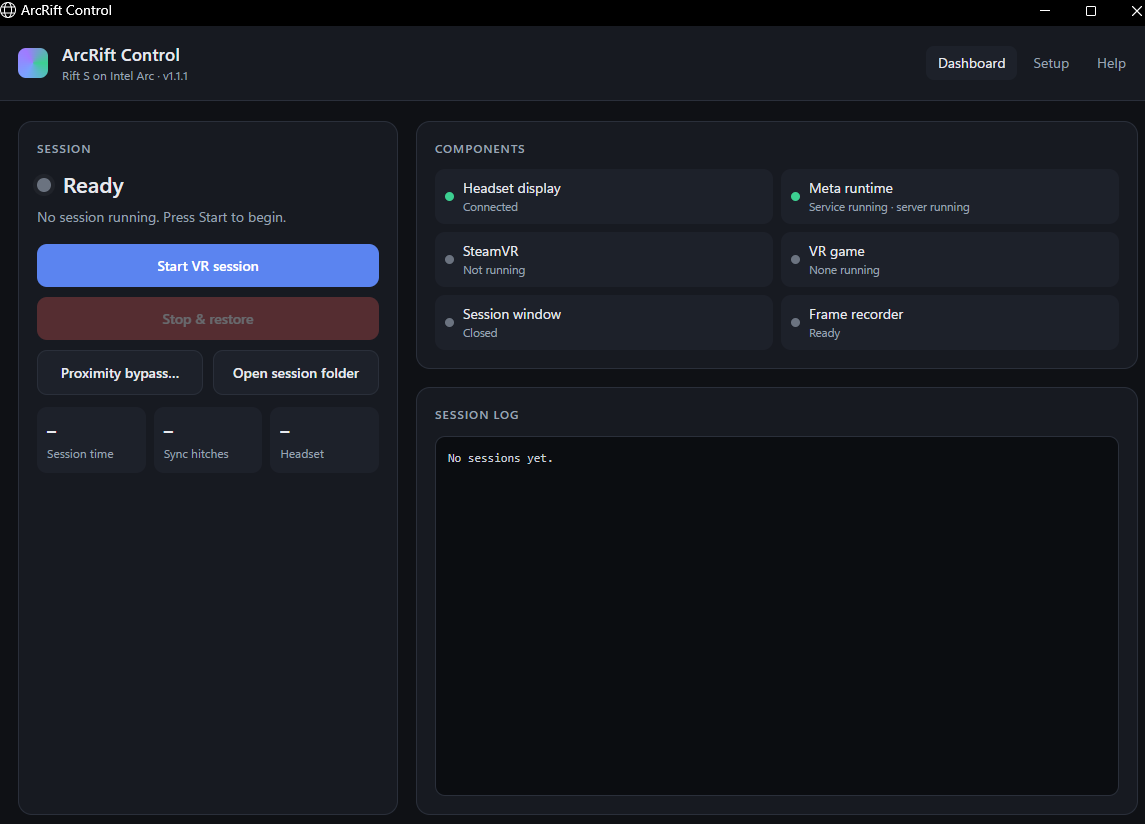
Image: ArcRift Control, the app that starts and restores a Rift S session on Intel Arc. Source: funrun45/ArcRift.
What ArcRift changes
ArcRift is a community workaround for a hardware combination that has no official path. Meta's PC runtime and the Rift S were built around its own supported GPUs, and Intel Arc is not on that list. ArcRift does not write a new driver or flash the headset. It temporarily changes Windows display settings, Meta runtime settings and the Rift S display mode so SteamVR can see and drive the headset, then restores them when the session ends.
The repository describes the tool as experimental and says it is not made or supported by Meta, Oculus, Intel or Valve. That sentence matters more than usual here. A session runs with administrator rights, opens a PowerShell window, and changes settings that the desktop and the headset both depend on. The project's own warning says an early development version once caused desktop and headset image corruption.
The app is small. The repository was created on November 1, 2026, and GitHub lists it at 124 KB with 3 stars, 1 fork and 1 open issue. The only release, v1.1.1, was published the same day and carries a 3.6 MB zip plus a SHA-256 file. The code is PowerShell and the licence is MIT. There is no installer and no service.
What the user gets is a control window with Setup, Start, Stop and recovery states. Setup records which display is the headset and which GPU is installed. Start stays disabled until that record exists. The session itself is a script, and the app's job is to launch it, watch it, and make sure the cleanup path runs.
The guard rails around a session
The safety design is the most substantial part of the project. While a session runs, ArcRift watches frame delivery, the GPU, SteamVR and the Meta runtime. If something crosses a threshold, it stops the session and restores the settings instead of leaving the desktop in the modified state.
The thresholds are specific. A frame rate that drops below 45 fps twice in a row ends the session. So does a gap of 3 seconds with no frames, a lost or hung GPU device, more than 20 SteamVR sync errors in 30 seconds, the Meta or SteamVR process exiting, a Windows display-driver reset, or low disk space. If Meta's runtime stops responding for 30 seconds, the tool restores everything automatically.
| Trigger | Threshold | Response |
|---|---|---|
| Frame rate collapse | Below 45 fps twice in a row | Stop session and restore |
| Frame stall | No frames for 3 seconds | Stop session and restore |
| SteamVR sync errors | More than 20 in 30 seconds | Stop session and restore |
| Meta runtime hang | No response for 30 seconds | Restore automatically |
| GPU device loss | Lost or hung device | Stop session and restore |
| Process or driver exit | Meta, SteamVR or display driver stops | Stop session and restore |
The freeze check pauses while the headset is off and resumes when it is put back on. That avoids a false alarm when the user takes a break. The tool also records frame timings with PresentMon into a session folder. Deleting PresentMon.exe turns that logging off.
The app keeps one administrator PowerShell window open for the length of the session because that window owns the cleanup. The README's first safety rule is to never close it. The second is to never run two copies of ArcRift at once. If the window closes or crashes before cleanup finishes, the app shows a Needs recovery state and offers a Recover button.
Tested on one Arc card
The tested configuration is narrow. The author ran an Oculus Rift S on an Intel Arc A770 with Intel driver 32.0.101.9150 under Windows 11, and played SteamVR games including VRChat. The README allows the Arc A750, A580, B580 and B570 as well, but marks them untested and asks users to report what happens.
That is a one-machine compatibility claim, not a supported platform. The project does not publish a list of working games, a frame-rate table or a failure rate. It does publish the conditions it needs: Windows 11, an Arc card with the headset's DisplayPort cable connected to it, the Rift S on USB and DisplayPort, the Meta Horizon PC app and SteamVR in their normal install locations, and Microsoft Edge for the app window.
Two limits are worth knowing before installing. Meta's ASW frame smoothing does not run on Intel Arc, so the headset cannot fall back on motion reprojection when a scene gets heavy. And after about 20 seconds without movement, Meta pauses tracking; picking the headset up again can freeze the runtime. ArcRift notices and restores, but the user has to start a new session.
Busy VRChat worlds are mostly limited by the CPU in this setup, according to the README. The suggested fixes are to lower the maximum shown avatars, hide Very Poor avatars and enable the particle limiter. None of those is an ArcRift setting; they are VRChat settings.
Setup, recovery and the risks
Installation is a folder, not an installer. The user unzips ArcRift somewhere normal, such as Documents\ArcRift, and keeps the folder together. If the download is source-only and lacks arc_rift_bridge.dll and release-manifest.json, the user runs BUILD-RELEASE.cmd once with the free Visual Studio 2022 C++ Build Tools.
Setup has three steps: the headset plugged in, unplugged, then plugged back in, with the Meta Horizon app open and the headset light on. Pressing Save records the display and GPU. Starting a session opens the administrator prompt and a PowerShell window, and SteamVR starts automatically. The status has to say Running before the game is started. To finish, the user quits the game and presses Stop and restore, then waits for the session to report that it is restored.
The release manifest is a useful detail. It lists a SHA-256 for each program, and a session refuses to start if any hash differs. That does not make an unsigned download trustworthy, but it does catch a modified helper inside an otherwise intact folder. The project also ships the full source and a separate set of manual scripts for users who do not want the app.
The risk is not theoretical. This is a tool that changes display and runtime state with administrator rights to make unsupported hardware work. The project says the upstream code it builds on warns that Meta's runtime can, rarely, need a PC restart. It also says session folders and Meta logs contain device IDs and the headset serial, and tells users not to post them publicly.
FAQ
Does ArcRift work with every Intel Arc card?
The README lists the A770 as tested and allows the A750, A580, B580 and B570 as untested. It does not claim support for other Arc models, and it does not publish results from them.
Does it work on Windows 10?
No. The requirements list Windows 11. The app also uses Microsoft Edge, which ships with Windows 11, to show its window.
Does ArcRift flash the GPU or install a custom driver?
No. It temporarily changes Windows display settings, Meta runtime settings and the Rift S display mode during a session, then restores them. The README describes it as a community workaround, not a driver modification.
What happens if the session crashes?
The app shows Needs recovery. The user plugs in the headset, closes the game and SteamVR, and presses Recover. The README says never to close the administrator PowerShell window during a normal session because that window performs the cleanup.
Does ASW work on Intel Arc?
No. Meta's ASW frame smoothing does not run on Intel Arc, according to the known issues. That makes a steady frame rate more important, and the tool stops a session when frame delivery collapses.
Is ArcRift free and open source?
Yes. It is MIT licensed, the repository includes the source and build scripts, and it is not affiliated with or endorsed by Meta, Oculus, Intel or Valve.
Bottom Line
ArcRift 1.1.1 is a small, MIT-licensed Windows tool that makes an Oculus Rift S work on an Intel Arc GPU by changing display and runtime settings for the length of a session. It was tested on one Arc A770 with one Intel driver on Windows 11, and the README is direct that other Arc cards are untested. The project's strongest feature is its cleanup design: specific frame, GPU, SteamVR and runtime triggers stop the session and restore the machine.
The limits are equally clear. There is no ASW on Arc, tracking can freeze after a pause, and the tool needs administrator rights plus a PowerShell window that must stay open. A crashed session leaves the user in a recovery flow. The 3 stars and single release are a measure of how new and narrow the project is, not a compatibility guarantee.
Our take: this is worth a look for someone who already owns a Rift S and an Arc card and accepts that the combination is unsupported. It is not a reason to buy either device, and it is not a plug-and-play fix. Read the safety rules, keep the folder intact, verify the manifest, and treat the first session as a test rather than a play session.
Sources
- GitHub funrun45/ArcRift README, requirements, setup, session behaviour, safety rules, known issues, privacy and licence, accessed November 3, 2026
- GitHub release v1.1.1, published November 1, 2026, release notes, asset size and checksum, accessed November 3, 2026
- GitHub API metadata for funrun45/ArcRift, stars, forks, open issues, creation date, last push, language and size, accessed November 3, 2026
- GitHub commit history for funrun45/ArcRift, commits through November 1, 2026, accessed November 3, 2026
Related: EDVR 0.20.2: Elite Dangerous VR Patch Restores AA, HUD Glow and the Oculus Route | Arc Rebar: A Boot Time Fix Unlocks Intel Arc VRAM on Legacy Boards | Mbucchia's PimaxMagic-Loader brings DFR to VRChat