
How to Fix Minecraft Dungeons II Launch Crashes: 8 Fixes [2026]
Tuesday, September 29, 2026By Indie Kings | September 29, 2026
Updated September 29, 2026: No official Minecraft Dungeons II known issues list is published as of writing, so this guide uses verified specs and launcher facts only. The 8 fixes below go cheapest first, with a check after each to confirm the game reaches the menu and enters camp.
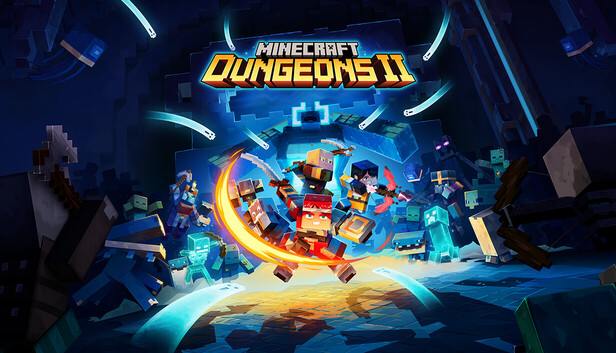
Image: Minecraft Dungeons II store art. Credit: Mojang Studios via Steam.
What we know on launch day
Minecraft Dungeons II launched on September 29 2026 from Mojang plus Double Eleven, published by Xbox Game Studios. The game is listed for PC on Steam as app 1912410, plus consoles and Game Pass. Launch day is when crash reports spike, even on PCs that ran other games fine.
No official Minecraft Dungeons II known issues list is published as of writing. That sentence matters because it stops guesswork. Without an official list, we do not invent Dungeons II error strings, and we do not quote codes from social posts as fact.
Official PC specs per the Steam front page via Minecraft Wiki set a clear floor. Minimum asks for an Intel Core i3-8100 or AMD Ryzen 3 2200G, 8 GB RAM, an NVIDIA GeForce GTX 1050 or AMD Radeon RX 560 with 2 GB VRAM, Windows 10 version 1703 or newer, and DirectX 11. Those parts are attributed by name to the Steam listing as cited by Minecraft Wiki.
Recommended specs per the same Steam front page via Minecraft Wiki ask for more headroom. Recommended lists an Intel Core i5-8400 or AMD Ryzen 5 2600, 16 GB RAM, and an NVIDIA GeForce GTX 1060 or AMD Radeon RX 580 with 6 GB VRAM. The OS stays Windows 10 64 bit and DirectX 11. That 2 GB to 6 GB VRAM step is the largest gap in the list.
Minecraft Help runs an official launcher crash page that applies here. Per help.minecraft.net, Minecraft uses Xbox services for updates and the Gaming Services Repair Tool can fix Launcher and update issues. That is a verified step, not a forum trick. It is the reason Fix 3 below tells you to update the launcher and store components before you verify files.
Mojira history gives context for launcher checks without proving a Dungeons II cause. Example MCL-21272, an unable to run program report from Dungeons 1 launcher history, went Cannot Reproduce. We cite that only to justify checking launcher version first. It is not a Dungeons II diagnosis and it does not predict your crash.
Steam Community threads for Dungeons 1 tie crashes to corrupted files, outdated drivers, or system issues. That is background pattern from Dungeons 1 players, not a Dungeons II fact. It supports the same order used here, with specs, drivers, launcher, files, storage, background apps, permissions, then reinstall. Pattern is useful for method, but it is not proof for this launch.
This guide frames all 8 fixes as a methodology ordered cheapest first. Each fix has one action plus what success looks like. Success means the game reaches the menu, then enters camp without closing. Test after each fix and stop when camp loads stable.
Keep notes as you go. Write OS build, CPU model, RAM total, GPU model and VRAM, driver date, launcher version, free space, and store used. Those notes make each later step faster. They also help if you later contact support with facts instead of guesses.
Do not change three things at once. Change one thing, test to menu and camp, then move on. That habit saves time on launch week. It also keeps a working fix from being hidden by a second change that breaks boot again.
Symptom to first check
Use this table to pick a starting point, then still work in order. A symptom points to a likely first check, but it does not skip the cheap steps before it. Any Dungeons II specific symptom below carries [NEEDS VERIFICATION] until an official list exists.
| What you see | Start here | Why this check |
|---|---|---|
| Click Play and nothing happens [NEEDS VERIFICATION] | Fix 1 specs and Fix 3 launcher | Below minimum specs or old launcher blocks boot before files load |
| Game closes during logo or loading [NEEDS VERIFICATION] | Fix 2 driver and OS build | Old GPU driver or old Windows build fails DirectX 11 init |
| Crash after update or after store prompt [NEEDS VERIFICATION] | Fix 3 launcher and store | Per help.minecraft.net, Xbox services and Gaming Services Repair Tool fix update paths |
| Crash on one PC but not another with same account [NEEDS VERIFICATION] | Fix 4 verify files and entitlement | Corrupted files or missing entitlement look like account faults |
| Crash with low disk warning or on external drive [NEEDS VERIFICATION] | Fix 5 storage and first run location | Low space breaks shader and profile writes on first boot |
| Crash only with browser, chat, or recorder open [NEEDS VERIFICATION] | Fix 6 clean boot and overlays off | Background hooks inject into boot on 8 GB RAM systems |
| Blocked by permission prompt or security app [NEEDS VERIFICATION] | Fix 7 admin plus firewall exception | Blocked network or write access kills login and save creation |
| Crash persists after all quick fixes [NEEDS VERIFICATION] | Fix 8 fresh reinstall with account check | Clean reinstall removes stacked partial updates and bad profiles |
The table above keeps you from starting with reinstall. Reinstall is Fix 8 for a reason. Most launch crashes resolve in Fixes 1 through 4 when each is tested to menu and camp.
Dungeons 1 player pattern fits this table as background only. Steam Community Dungeons 1 threads tie crashes to corrupted files, outdated drivers, or system issues. That matches rows for drivers, files, and background apps. It does not prove the same split for Dungeons II.
Launcher version deserves special care on day one. Mojira example MCL-21272 went Cannot Reproduce, which shows launcher faults can be hard to pin down. An old launcher can still block a new game. Check version before you blame hardware.
Fix order by cost and time
This order puts free and fast checks first. Cost means money and risk, not only minutes. A free five minute check always beats a paid part or a full reinstall.
| Order | Fix | Cost | Time |
|---|---|---|---|
| 1 | Confirm specs vs official minimum | Free | 5 minutes |
| 2 | Update GPU driver and OS build | Free | 10 to 20 minutes |
| 3 | Update launcher and store | Free | 5 to 10 minutes |
| 4 | Verify game files plus entitlement check | Free | 10 to 30 minutes |
| 5 | Clear storage and avoid external drive first run | Free | 10 minutes |
| 6 | Clean boot with overlays off | Free | 10 minutes |
| 7 | Admin plus firewall exception | Free | 5 minutes |
| 8 | Fresh reinstall with account check | Free but slow | 30 to 90 minutes |
The order above is the method. Do not jump to Fix 8 because it feels thorough. A fresh install over an old launcher or a full drive will crash again. Cheap fixes protect the slow fix.
Time ranges assume a normal home connection and a single drive. Verify steps on Steam can run long on slow drives. Driver updates can need a reboot. Plan reboots into the sequence instead of treating them as lost time.
Success looks the same after every row. Boot to menu counts as step one. Enter camp and walk for two minutes counts as step two. If both pass, stop and play. If menu passes but camp fails, note it and continue to the next fix.
8 fixes in order
Work this list top to bottom. One action per step plus what success looks like. Test to menu and camp after each fix.
- Confirm specs vs official minimum. Open Settings then System then About for OS build, and Task Manager Performance for CPU, RAM, and GPU. Compare to minimum per the Steam front page via Minecraft Wiki: Intel Core i3-8100 or AMD Ryzen 3 2200G, 8 GB RAM, NVIDIA GeForce GTX 1050 or AMD Radeon RX 560 with 2 GB VRAM, Windows 10 version 1703 or newer, DirectX 11. Compare to recommended for context: Intel Core i5-8400 or AMD Ryzen 5 2600, 16 GB RAM, NVIDIA GeForce GTX 1060 or AMD Radeon RX 580 with 6 GB VRAM. Success looks like this: your PC meets minimum on all five lines and you have ruled out a hard block. If any line fails, fix that part or set solo low settings expectations before you touch drivers. Any crash label tied only to Dungeons II specs carries [NEEDS VERIFICATION] until official guidance expands.
- Update GPU driver and OS build. Get the GPU driver from NVIDIA or AMD official download, pick Studio or Game Ready as offered for your card, and do a clean install if offered. Then open Windows Update, install all pending updates, and reboot. Confirm Windows 10 version 1703 or newer and DirectX 11 in dxdiag. Success looks like this: driver date is current, OS build is at or above minimum, and the game reaches menu. This step reflects Dungeons 1 player pattern where outdated drivers linked to crashes, presented as background only, not as Dungeons II fact. A Dungeons II boot fault tied to a specific driver version carries [NEEDS VERIFICATION].
- Update launcher and store with Gaming Services Repair Tool per help.minecraft.net. Update the Minecraft Launcher to the latest build, update the Xbox app and Gaming Services from the Microsoft Store Library, then run the Gaming Services Repair Tool. Per help.minecraft.net, Minecraft uses Xbox services for updates and the Gaming Services Repair Tool can fix Launcher and update issues. Reboot after the repair, then boot the game from the correct store entry for your purchase. Success looks like this: launcher shows current version, store shows no pending updates, and Play reaches the loading screen without a store loop. Mojira MCL-21272 is cited here only to justify checking launcher version, since that Dungeons 1 launcher report went Cannot Reproduce. Any Dungeons II launcher symptom carries [NEEDS VERIFICATION].
- Verify game files plus reinstall entitlement check. On Steam use Properties then Installed Files then Verify integrity of game files. In the Microsoft Store or Xbox app use Manage then Verify or Repair. After verify, confirm you are signed into the account that owns the game and that Game Pass is active if you use it. Success looks like this: verify reports clean or repairs files, entitlement shows owned or active, and the game reaches menu. This mirrors Dungeons 1 background pattern where corrupted files linked to crashes, reported by Steam Community Dungeons 1 threads, not as Dungeons II fact. A Dungeons II file fault tied to a specific file carries [NEEDS VERIFICATION].
- Clear storage space and avoid external drive first run. Free space on the install drive so Windows, shaders, and profiles can write, then run first boot from internal storage instead of an external USB drive. Move the install to internal SSD or internal HDD for the first run if it sits on USB today. Success looks like this: free space rises, first boot completes to menu, and camp entry does not stall on loading. Storage need for Dungeons II on PC is not published as an official figure, so any GB target carries [NEEDS VERIFICATION]. Use free space as method, not as a quoted requirement.
- Clean boot background apps and overlays off. Close browsers, chat apps, recording tools, and extra launchers. Turn off in game overlays for Steam, Discord, and the Xbox Game Bar for this test. Restart, launch only the store and the game, then test solo to camp. Success looks like this: with background load low, menu loads and camp walk stays stable for two minutes. Background hooks match Dungeons 1 system issue pattern as background only. A claim that a named overlay breaks Dungeons II carries [NEEDS VERIFICATION].
- Run as admin plus firewall exception. Right click the launcher or game entry and run as administrator for one test boot. Then open Windows Security Firewall and confirm the game and launcher have private network access allowed. Keep total security apps to one active scanner during the test. Success looks like this: no permission prompt loops, login completes, and camp loads with network features on. This checks write and network blocks without changing game files. A Dungeons II permission fault tied to a named firewall rule carries [NEEDS VERIFICATION].
- Fresh reinstall with account check. Uninstall the game, reboot, confirm the install folder is gone or renamed as backup, then reinstall to internal storage. Sign into the correct Microsoft or Xbox account before first boot and confirm ownership or Game Pass status. Boot to menu, then enter camp and walk for two minutes before you restore settings. Success looks like this: clean install boots to menu and enters camp stable, which proves prior files or profile state caused the loop. Any save migration step for Dungeons II carries [NEEDS VERIFICATION], so back up profiles before you delete. Do not wipe saves blindly to chase a faster boot.
That list is the full method. Each fix costs nothing but time until Fix 8. Each test uses the same bar of menu plus camp. That bar keeps results comparable across steps.
If camp loads after any fix, lock the setup and play. Do not keep applying later fixes just to finish the list. Extra changes add new risk. Note the winning fix for later in case an update reopens the fault.
If all 8 fail, stop and gather facts for support. List OS build, CPU, RAM, GPU and VRAM, driver date, launcher version, store used, free space, and which fixes reached menu. State that no official Dungeons II known issues list is published as of writing. Facts get faster help than crash guesses.
Failure myths
Driver updater spam wastes time and adds risk. Third party updater bundles often install wrong builds or bundle extra apps. Get drivers from NVIDIA or AMD direct and Windows Update only. One clean official driver beats five auto scans.
Deleting saves blindly can destroy progress without fixing boot. Saves rarely block menu load, and wiping them removes proof support needs. Back up any profile folder before you touch it. Any Dungeons II save wipe guide carries [NEEDS VERIFICATION].
Registry cleaners do not fix game launches and can break store logins. They remove keys the Xbox app and Gaming Services expect. Per help.minecraft.net, use the Gaming Services Repair Tool for store and update paths. That tool is verified, while registry edits are not.
Expecting one patch to fix all rigs misreads launch week. Without an official Dungeons II known issues list, no single patch note can cover every mix of i3 plus 8 GB plus 2 GB VRAM versus i5 plus 16 GB plus 6 GB VRAM. Work the order above on your build. Patches help over time, but method fixes today.
Copying random settings dumps skips the real fault. A dump from a 16 GB plus 6 GB VRAM PC will not fit an 8 GB plus 2 GB VRAM PC. Test specs, drivers, launcher, files, space, background load, permissions, then reinstall. That order finds your blocker instead of someone else settings.
External drive speed myths also mislead. USB versus internal matters for first run stability, but no USB speed claim fixes a launcher or entitlement fault. Test internal first to rule out path issues. Then move back to external only after camp proves stable, if you must.
FAQ
Is there an official Minecraft Dungeons II known issues list?
No official Dungeons II known issues list is published as of writing. Use the 8 step method here and recheck official channels after each patch.
What are the official minimum PC specs?
Per the Steam front page via Minecraft Wiki, minimum asks for Intel Core i3-8100 or AMD Ryzen 3 2200G, 8 GB RAM, NVIDIA GeForce GTX 1050 or AMD Radeon RX 560 with 2 GB VRAM, Windows 10 version 1703 or newer, and DirectX 11.
What are the official recommended PC specs?
Per the Steam front page via Minecraft Wiki, recommended asks for Intel Core i5-8400 or AMD Ryzen 5 2600, 16 GB RAM, NVIDIA GeForce GTX 1060 or AMD Radeon RX 580 with 6 GB VRAM, on Windows 10 with DirectX 11.
How does the Gaming Services Repair Tool help launch crashes?
Per help.minecraft.net, Minecraft uses Xbox services for updates and the Gaming Services Repair Tool can fix Launcher and update issues. Update the launcher and store, run the repair tool, reboot, then test to menu.
Do corrupted files or old drivers cause Dungeons II crashes?
Steam Community Dungeons 1 threads tie crashes to corrupted files, outdated drivers, or system issues as background pattern from D1 players. For Dungeons II that link carries [NEEDS VERIFICATION], so treat verify files and driver updates as method, not as proven cause.
What proves a fix worked?
The game reaches the menu, then enters camp and walks stable for two minutes. Test after each fix and stop at the first stable camp entry.
Bottom Line
Minecraft Dungeons II launched September 29 2026 from Mojang plus Double Eleven with Xbox Game Studios, and PC specs are verified per the Steam front page via Minecraft Wiki. Minimum centers on i3-8100 or R3 2200G, 8 GB RAM, and GTX 1050 or RX 560 2 GB on Win10 1703 plus DX11, while recommended moves to i5-8400 or R5 2600, 16 GB, and GTX 1060 or RX 580 6 GB. No official Dungeons II known issues list is published as of writing, so avoid invented codes and work cheapest first.
Run the 8 fixes in order and test menu plus camp after each. Launcher and store repair per help.minecraft.net sits early because update paths block many boots. Mojira MCL-21272 and Dungeons 1 player threads only justify that order as background, not as Dungeons II proof. Fresh reinstall closes the list because it is slow, not because it is strongest.
Sources: Minecraft Help launcher crash page per help.minecraft.net for Xbox services updates and Gaming Services Repair Tool; official PC specs per the Steam listing at Steam store app 1912410 as cited by Minecraft Wiki; platform and technical context per DungeonsDB technical page.
Related: How to Run Minecraft Dungeons II on Low End PC: 7 Checks, 15 Min [2026] | Game Pass vs Steam vs PS5 vs Switch 2 for Minecraft Dungeons II: 6 Differences [2026] | How to Play Minecraft Dungeons II Co-op and Crossplay: 7 Steps [2026]